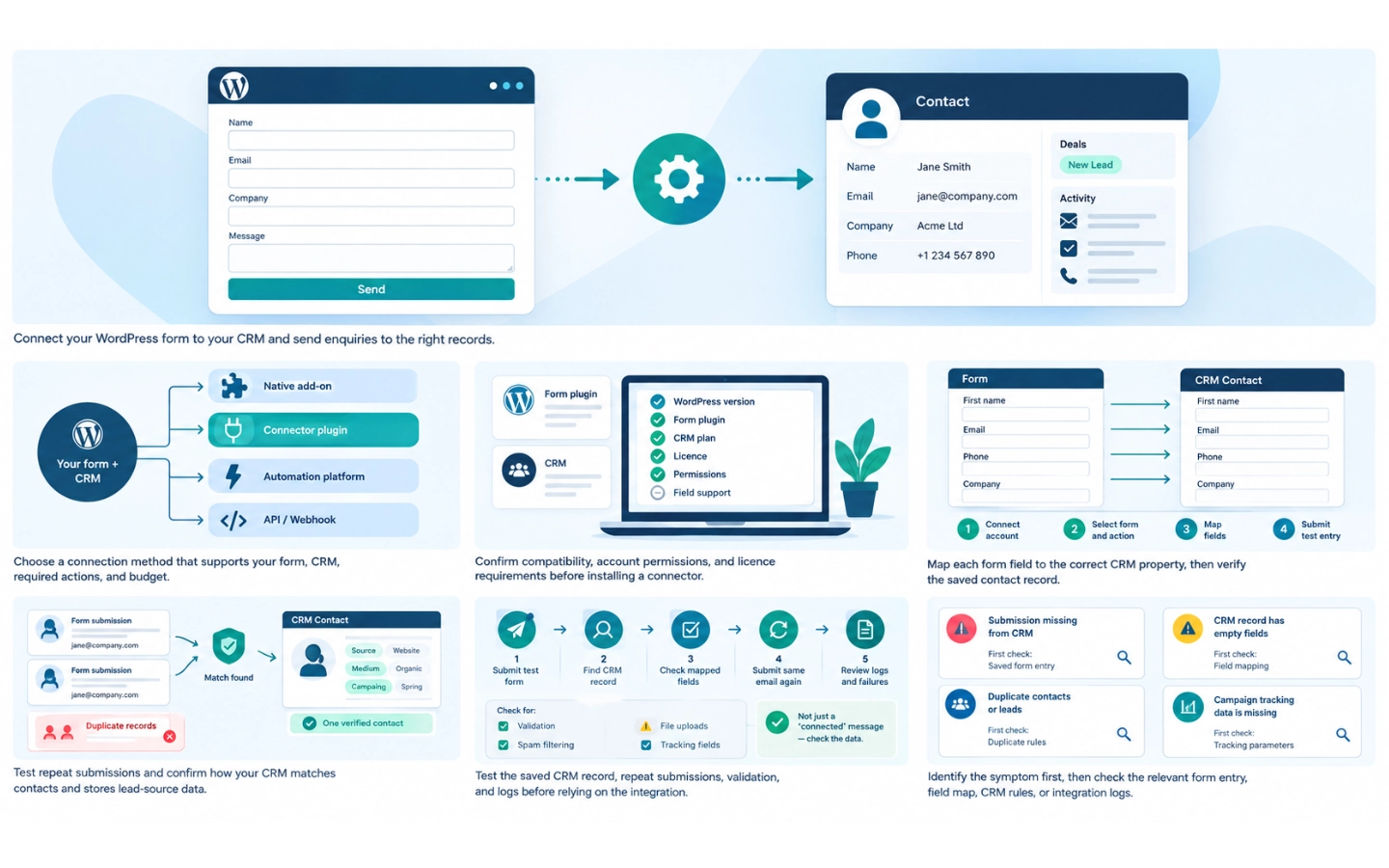
If your WordPress form is sending every enquiry to an email inbox, then someone will need to manually copy and paste it into the CRM. This is slow and prone to typing mistakes.
When the form connects to the CRM, that step is eliminated, but only when three conditions are met: The correct data is sent, the data is placed into the correct CRM record, and you can confirm that it is there. A “Connected” settings screen does not provide any of the three.
This guide will explain how you can link a WordPress form to a CRM and the key points to look at before you spend any money. It also provides a step-by-step guide to a documented WPForms-to-HubSpot integration, shows you how to test the integration, and highlights potential integration failure scenarios and current limitations.
Start with a native add-on if it supports your exact form and CRM and your licence includes it. If not, compare a maintained connector plugin with an automation platform. If you haven’t chosen a CRM yet, see The Work Pilot’s guide to choosing client management software. Whichever route you take, check a real CRM record after a test submission.
Terms used in this guide
- CRM: the system where you keep contacts, companies and deals.
- Record and object: a record is one entry in the CRM, such as a contact or a deal. An object is the type of record.
- Field mapping: telling the integration which form field fills which CRM field. HubSpot calls CRM fields “properties”.
- OAuth: a way to approve an app’s access without giving it your CRM password. Depending on the integration, the app may still use access tokens or need client setup details.
- API: a defined way for software to exchange data with a service. Some CRM editions and user accounts need API access switched on before an integration can work.
- Webhook: a request sent to a web address when something happens, such as a form submission. The receiving service has to be set up to accept and process the data.
Choose the Right Way to Connect Your WordPress Form to a CRM
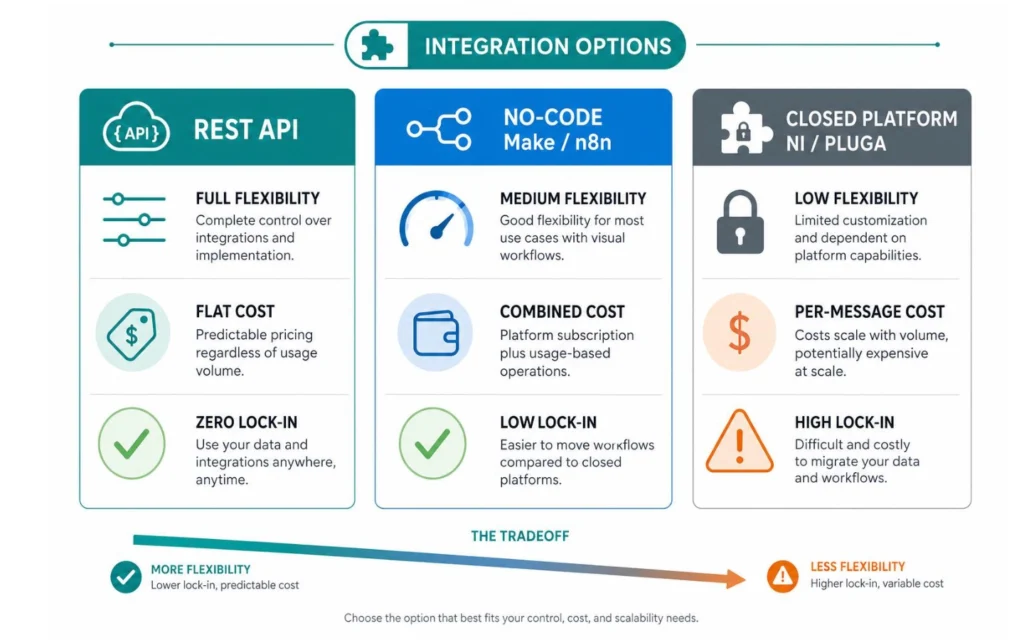
No method wins everywhere. The right one depends on your form plugin, your CRM, what should happen after a submission, what your accounts include, and the total cost. If you’re still deciding whether a CRM is the right kind of tool, read The Work Pilot’s guide to CRM vs client management software.
| Method | Best when | Limits and what to check first |
| Native add-on from the form plugin’s vendor | Your form vendor lists the CRM, and your licence includes the add-on. You may be able to set it up inside the form builder, but check which actions it supports and who provides support. | Licence tiers decide access. WPForms lists HubSpot, Salesforce, Zoho CRM, Pipedrive and ActiveCampaign under Elite. Gravity Forms includes HubSpot with every licence, but Zoho CRM requires Pro, Elite or Nonprofit. Supported actions differ by add-on, and support may involve both the form vendor and the CRM vendor. |
| Connector plugin from a third party | Your form plugin has no official add-on for your CRM, or the official one sits in a tier you don’t want to buy. Contact Form 7 usually falls here. | Quality, support and update frequency vary by author. Check the last update, the stated WordPress compatibility, the CRM records and fields it supports, and what the free version leaves out. A marketplace listing can be deprecated, so confirm its current status before installing. |
| Automation platform such as Zapier, Make or Zoho Flow | You want more than the CRM step (create a task, post to chat, add a spreadsheet row), or neither the form plugin nor the CRM offers a direct link. | It adds another account and a usage-based bill. Zapier Free is limited to 100 tasks per month and two-step Zaps; Make Free lists 1,000 credits per month and a 15-minute minimum interval. Check the current limits, and check whether your form plugin supports the trigger you need. WPForms lists its Zapier and Make connections in Pro and above. |
| Webhook or direct API | Someone technical can build and maintain it, or the other routes can’t carry a field you need. | You need to know what the receiving endpoint expects, how authentication works, and how failures are logged. WPForms lists its Webhooks add-on under Elite. Treat direct API and webhook work as a technical route unless your chosen tool offers a supported no-code setup. |
The CRM’s own form is a different option
You can avoid using your form plugin and instead embed a form that was created inside of the CRM. That will replace your current form, not link it. For instance, HubSpot's WordPress plugin allows you to create HubSpot forms in WordPress. This can save setup time if you are not required to maintain your existing shape. The downside is that you'll be using the form in the CRM and the field, layout and behavior options may be different from your current form.
A middle route: let HubSpot read your existing form
HubSpot can also capture some submissions from forms that it didn't build, with its “non-HubSpot forms” tool. This will need the HubSpot tracking code and a compatible form. Before taking this path, read HubSpot's current requirements.
Know the limits before you choose it. The tool doesn’t collect hidden fields, including hidden UTM fields. It logs a submission when the user presses the submit button, even if the form's validation was not successful. It can link emails from the same browser cookie together, even if the email addresses are different. It also requires a matching static HTML form, and it can fail if scripts or browser extensions prevent the tracking code from running. Capture like this isn’t the same as a dedicated connector that sends validated form data through an integration. Only use this route if it is suitable for your form and test it thoroughly.
A simple decision guide
- Look up your form plugin and your CRM on the plugin vendor’s integration page. If an official add-on exists and your licence includes it, use it. If you’d need to upgrade, price the upgrade first (see the cost section).
- If the vendor has no add-on for your CRM, check whether the CRM offers its own plugin or form-capture tool that works with your form plugin.
- If you want extra steps after a submission, or the two tools have no direct link, use an automation platform. Estimate its monthly usage before you pick a plan.
- If only a webhook or API route is left, decide who will maintain it. If the answer is nobody, go back to steps 1 to 3 or look at the CRM’s own form.
- If you have no form yet, or yours is simple, compare the price of the CRM’s own form with the other options.
Check Compatibility Before You Buy Anything
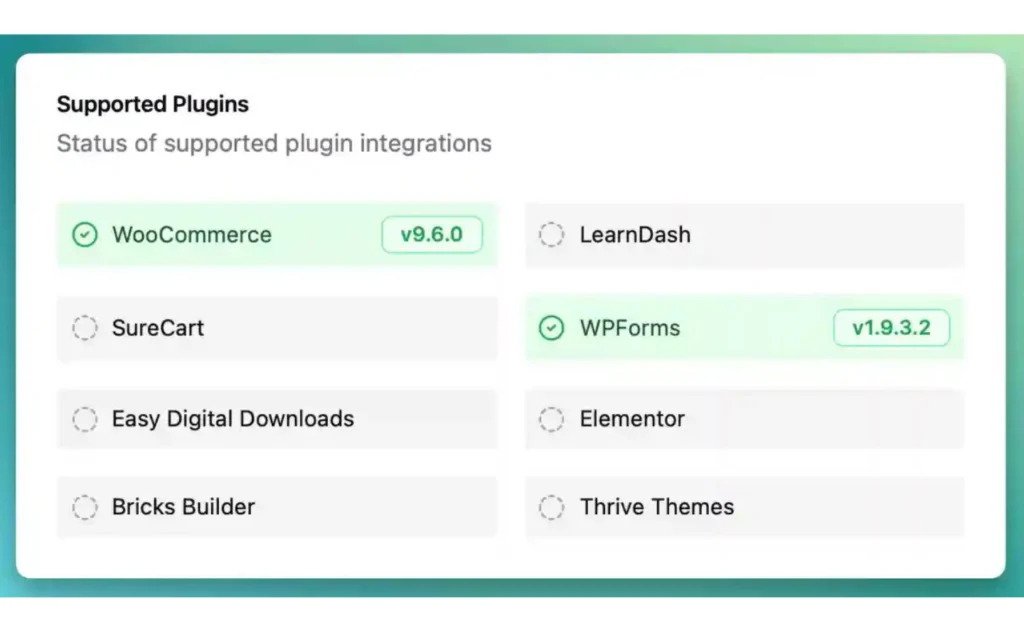
An integration can fail for reasons that have nothing to do with how carefully you set it up. Check the points below before you pay.
- WordPress and hosting. HubSpot’s plugin works on a WordPress.org install or a WordPress.com Business plan. Other WordPress.com plans don’t allow plugins or JavaScript, so the plugin won’t work on them. The WPForms Salesforce add-on needs your site to load over HTTPS.
- Form plugin and version. Note your current version, then check the add-on’s minimum requirements and recent release notes. Back up your site before making changes. If you need to update WordPress or a plugin, test the change on a staging copy first when you can, rather than assuming a live-site update is risk-free.
- CRM product and edition. The same CRM can behave differently by plan. Salesforce is the clearest case (see below).
- Licences. Check the form-plugin tier, any separate add-on fee, and the CRM tier. Write each one down with its renewal price.
- Permissions. HubSpot says installing its WordPress plugin requires a HubSpot Super Admin and a WordPress administrator, and third-party cookies must be allowed in the browser during installation. Salesforce setup through WPForms requires creating an app in Salesforce. Check the current steps in each vendor’s documentation.
- Record type. Decide whether a submission should create a contact, lead, company or deal. Add-ons support different sets. WPForms’ Salesforce add-on lists Account, Campaign, Case, Contact, Lead, Opportunity and Product. Ninja Forms’ HubSpot add-on lists Contacts, Companies and Deals.
- Required fields and field types. Find out which CRM fields are mandatory and which types (text, date, checkbox, dropdown) the connector can fill.
- File uploads and tracking fields. Support depends on the exact connector. Gravity Forms says its Zoho CRM add-on can send uploaded files to Zoho CRM, for example, while the HubSpot non-HubSpot form capture tool does not collect hidden fields. Confirm support in the documentation for your exact form-and-CRM pair, then test it.
- Maintenance. Look for a recent update, a working support channel, and a stated compatibility range.
Why Salesforce API access can block you
Salesforce integrations generally need API access for the relevant organization and user. Salesforce’s current edition guidance says Enterprise, Unlimited, Developer, and Performance include API access by default. Professional doesn’t include it by default but can add the Web Services API product. Group and Essentials don’t include API access and can’t add it. User permissions matter too, so check both the edition and the integration user before you buy an add-on.
WPForms’ Salesforce setup guide also requires an Elite licence, HTTPS, and a Salesforce edition with API access. Setup includes creating an app in Salesforce. Because those steps may require Salesforce administration, confirm who will manage the connection before you choose this route.
Connect Your Form to the CRM
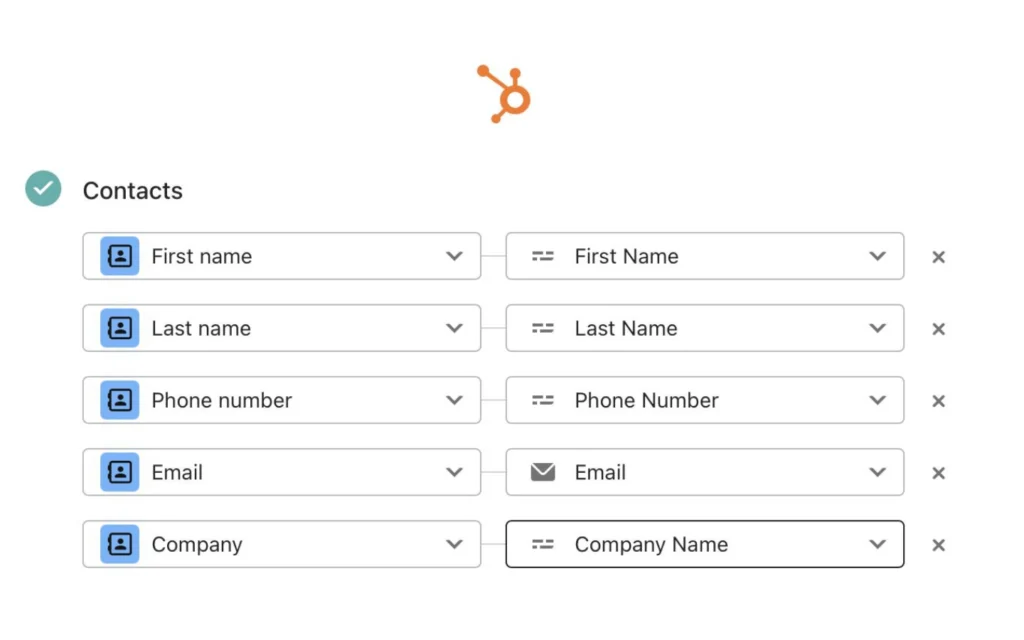
Screen names differ from tool to tool, but most integrations follow the same order.
- Confirm support. Check that your form plugin and CRM appear together on the vendor’s integration page or the connector’s listing, and that your licence and CRM edition meet the stated requirements.
- Install or enable the tool. Check compatibility and take a backup first. Update WordPress or plugins only when the current versions meet the integration’s requirements, and use a staging site for risky changes where possible. Then install the add-on or connector, or create the automation-platform account.
- Authenticate the CRM. Use the method the tool supports. OAuth usually means logging in and clicking “Allow”. Some setups, such as WPForms with Salesforce, ask you to create an app in the CRM and paste in a key and secret.
- Select the form and the CRM record type. Pick the form, then the action, such as create or update a contact.
- Map each form field to the matching CRM field.
- Set record options. Choose the owner, status, notes, and any condition that decides when a submission is sent.
- Save the configuration and publish the form.
- Submit a controlled test entry and inspect the CRM record. Then work through the full checklist in the testing section.
Documented example: WPForms with HubSpot
This example follows WPForms’ official HubSpot add-on setup instructions. We did not run the connection ourselves, so treat the steps as a documentation-based walkthrough, not a hands-on test.
- Confirm that you hold the WPForms Elite licence, which the guide lists as a requirement, and that WPForms is up to date. Have a HubSpot account ready.
- Install and activate the HubSpot addon from your WPForms addons screen.
- Go to WPForms > Settings > Integrations, open HubSpot, and click Add New Account. Sign in to HubSpot, choose your account, and click Connect app. The integration should then show a green Connected status.
- If the current WPForms guide requires it, add your website’s domain under the additional site domains in HubSpot’s Reports & Analytics Tracking settings. WPForms warns that submissions from unregistered domains may be filtered as spam. Check the exact menu names in the current guide, because screens can change.
- Open the form in the builder, go to Marketing > HubSpot, click Add New Connection, and give it a nickname for your own reference.
- Select your HubSpot account and choose the action Create/Update Contact.
- Fill in the options. Email and Form Name are required. Lead Status, Contact Owner and Note are optional.
- Map extra fields by pairing a HubSpot property (Custom Field Name) with a form field (Form Field Value). Create any custom properties in HubSpot first, because only existing properties appear in the dropdown.
- Optional: turn on conditional logic, for example to send a contact to HubSpot only when a newsletter box is ticked.
- Save the form, test it on a preview or private page, then find the new contact in HubSpot.
One warning from the guide: don’t edit a form that WPForms created in HubSpot from HubSpot’s own Forms page. WPForms says HubSpot checks each submission against the fields on that form, so changes made there can cause submission errors. If the screens or settings have changed, follow WPForms’ latest instructions.
Other combinations: where to start
- Gravity Forms with HubSpot. Its current integration page says the HubSpot add-on is included with Basic, Pro, Elite, and Nonprofit licences. The add-on can create or update contacts and set supported fields and routing options. See the vendor’s HubSpot integration documentation.
- Gravity Forms with Zoho CRM. Its current Zoho CRM integration page says the add-on is included with Pro, Elite, and Nonprofit licences. It supports creating or updating contacts, creating leads, and sending uploaded files to Zoho CRM. Confirm the current licence and action support before you buy.
- Ninja Forms with HubSpot. Its current HubSpot add-on page describes OAuth authentication, visual field mapping, support for Contacts, Companies, and Deals, and a response tab for each submission. The page says the add-on is free for Pro members. It doesn’t clearly establish the standalone price for every licence, so confirm the total at checkout rather than relying on an unverified price.
- WPForms with Salesforce. Follow the current Salesforce add-on guide. It describes creating a Salesforce app, selecting OAuth permissions, and a PKCE-related setup step. Changing an authentication setting can affect security, so have a qualified Salesforce administrator verify the current instructions and your organisation’s policy before you connect a live CRM. Screen labels may change.
- Zoho CRM, Pipedrive, and ActiveCampaign with WPForms. WPForms’ current pricing page lists these CRM add-ons under Elite. See the current pricing and plan inclusions and the setup guide for your chosen CRM before you buy.
Contact Form 7
Contact Form 7 doesn’t save submitted messages by default and has no built-in CRM link. Its documentation points to Flamingo, a free storage plugin from the same author, for keeping a copy of submissions. For a CRM connection, you’ll usually need a third-party connector or an automation platform. Check the Contact Form 7 documentation and the Flamingo listing.
Several Contact Form 7 connectors appear in WordPress.org listings, but a listing doesn’t prove that a plugin is maintained or supports your exact workflow. One Zoho Marketplace listing reviewed for this article was marked deprecated or unavailable, which doesn’t establish the status of every Contact Form 7 connector. Check the latest update, compatible versions, support route, field types and file-handling behavior, then test before you rely on it. Keep Flamingo or a similar storage option enabled if you need a backup copy of submissions.
Map Fields Correctly and Keep Your CRM Data Clean
Field mapping is a lookup table. The left side is a field on your form, and the right side is a field in the CRM. A submission fills the CRM record according to that table and nothing else.
Here’s a small example for a HubSpot contact:
| Form field | CRM field (HubSpot example) | Watch for |
| First name, Last name | First name, Last name | A single “Full name” field may not split into two CRM fields. Use two form fields if the CRM stores two. |
| WPForms’ HubSpot action requires it and uses it to find an existing contact. | ||
| Phone | Phone number | Formatting rules differ. Test with the number formats your visitors actually type. |
| Company | Company name | In HubSpot a company can be its own record. WPForms offers a separate Company Connect action for that. |
| Message | Note, or a custom multi-line property | WPForms’ contact action has a Note option. A short text property can cut off long text. |
| Hidden fields (UTM values, page URL) | Custom properties you create | The properties must exist in the CRM before you can map them. |
Matching names don’t guarantee success. Each connector has its own mapping rules, and the CRM validates what it receives. A mapping screen that looks right hasn’t proved the saved record is right, so check the record itself after every test.
- Required CRM fields. Ninja Forms’ HubSpot add-on states that a contact needs a valid email, a company needs a domain name, and a deal needs a name, pipeline and stage. Other CRMs set their own rules, and your administrator may have added more. Salesforce commonly requires a last name on contacts, and a last name and company on leads, but confirm this in your own org.
- Custom fields. Create them in the CRM first. In WPForms they then appear in the dropdown. Ninja Forms has a Retrieve HubSpot Fields button for pulling in new properties.
- Field types. Dates, checkboxes and dropdowns need the right format. Ninja Forms’ changelog shows an older fix (version 3.0.2, 2021) that converted dates and checkboxes into the formats HubSpot expects. It’s a historical example of why type conversion matters, not a statement about today’s version.
- Record types. One form can create a contact only, or a contact plus a deal. Ninja Forms’ add-on links a deal to the contact or company created in the same submission when the required fields are mapped.
- Existing records. Find out whether the integration creates a new record each time or updates a match. WPForms’ HubSpot action is called Create/Update Contact, and Gravity Forms says its HubSpot integration creates or updates contacts. Don’t assume Salesforce or another CRM object behaves the same way. Test the exact action and review the CRM’s duplicate rules.
- Changes later. Renaming a form field, deleting a CRM property or changing a property’s type can break a working map. Re-test after any such change.
A worked scenario (illustration only)
Suppose you have a form for requesting a quote that asks for the name, email, phone, company, service required, budget, and message. It also collects UTM source, medium, campaign and landing page. The objective is to establish or update the correct contact, maintain the lead source, retain the message, assign an owner to the lead based on the service requested and alert the owner.
If the contact workflow is documented, then for a WPForms–HubSpot contact workflow, you need to have Email as a contact property, and you need to have custom properties defined in advance to be mapped. Use the documented matching and routing rules of the connector, not assuming that the same rules are available for other integrations. A CRM workflow or form-plugin notification might be required to assign an owner or send an alert. This is a design sketch and not a tested build, and the actions available are subject to the actual products and licences.
Prevent Duplicate Records and Preserve Lead Information
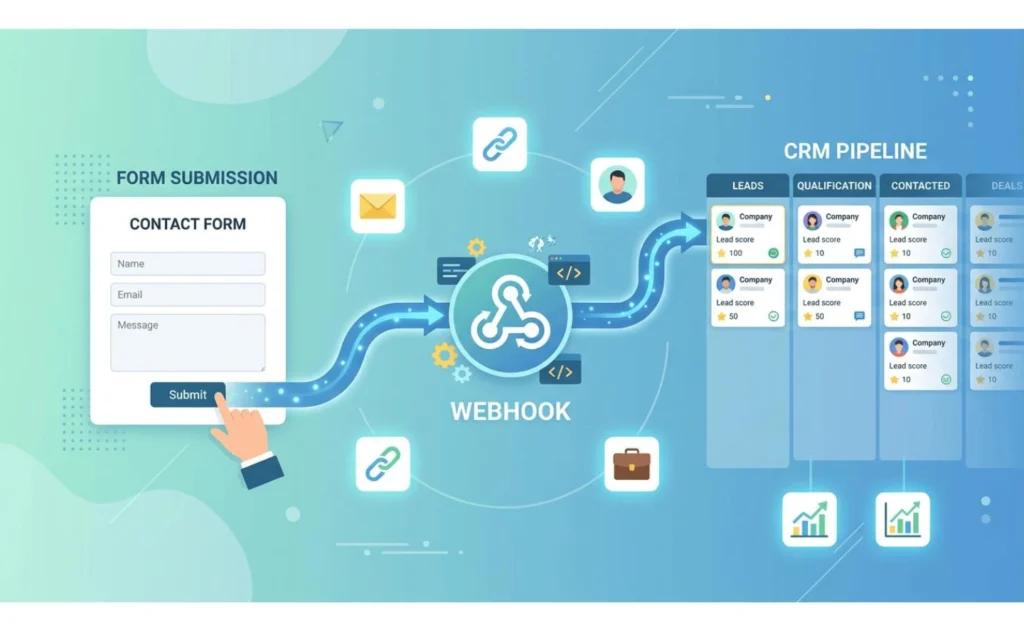
Duplicates usually come from one of four causes:
- The same person submits twice, for example by double-clicking or refreshing.
- Several forms feed the same CRM, each creating its own record.
- Two integrations act on one form. A native add-on plus a script that captures the same form is one example, because each may create an entry.
- The matching rule does not find the existing record, for instance because the email was typed differently or the connector matches on a different field.
To reduce duplicates:
- Find out whether your integration updates an existing record or always creates a new one.
- Use the matching and deduplication options your CRM or connector documents.
- Don’t run two connections that do the same job unless you mean to.
- Submit the same test email twice before launch and count the records.
- Review lead ownership, routing and automation rules in the CRM, because they can act on a record after it arrives.
Email is a common matching field for contacts, but not a universal one. A shared address such as info@ can represent different people. A new deal or quote opportunity may need to be created for every request, even when the contact already exists. Matching depends on the CRM, record type and connector. HubSpot’s non-HubSpot form capture adds a separate risk: submissions associated with the same browser cookie can be grouped into one contact, even when the email addresses differ.
Keeping UTM and lead-source data
There are two separate steps to passing campaign data into a CRM. First, the form needs to collect the UTM values, and if it does, a hidden field will help. Second, the integration needs to pass the value to the desired property in the CRM, which might have to be created first. Do not rely on a connector to automatically pick up hidden values. In particular, HubSpot's non-HubSpot form capture tool doesn't capture hidden fields. Test using a URL with known UTM parameters, and view the Form Entry and CRM Record.
Test the Integration Before Relying on It
Run these tests on a private page or form preview, using test data you can recognize and delete.
- Submit a test entry with a unique email address. This confirms that the connection works at all, and the unique address makes the record easy to find.
- Check that the correct CRM record appears. This catches a wrong record type or the wrong CRM account.
- Inspect every important field value. This catches mapping errors, cut-off text and wrongly converted dates or checkboxes. Look at the saved record, not the mapping screen.
- Submit the same email again. This shows whether the integration updates the record or creates a duplicate.
- Trigger a required-field failure. Do it in the form plugin and confirm its validation works as intended. If you use HubSpot’s non-HubSpot form capture, remember that HubSpot records a form submission whenever the visitor clicks submit, even when the external form rejects the entry. That method may therefore be unsuitable if you need the CRM to contain only validated submissions.
- Test spam filtering. Confirm that your spam protection stops bots before the CRM step, not after it.
- Test file uploads if you use them. Check where the file ends up and what the CRM shows.
- Verify tracking fields and lead source by arriving through a URL with known UTM values.
- Review logs and task history. Look at the integration’s response log, the automation platform’s task history, or API error messages, whichever your setup has. Ninja Forms’ HubSpot add-on shows a response tab for each submission, and WPForms’ Salesforce guide says a failed submission can be resent from the entry page.
- Fix failures and repeat the relevant tests. Run the full list again after you change any mapping.
No checklist can guarantee that every submission will always arrive. To reduce the risk, keep a record of what happened at each step and check for failures after launch:
- Keep entry storage on in the form plugin (or Flamingo for Contact Form 7) so you can compare form entries with CRM records.
- Keep a plain notification email on, at least at first, as a fallback.
- Reconcile a sample of form entries with their outcomes in the CRM or integration log: created, updated, rejected, or failed. Don’t compare raw form-entry totals with new-contact totals alone, because a valid submission may update an existing contact instead of creating a new one.
- Turn on failure alerts in your automation platform if it offers them.
- Re-run a short test after every update to the form plugin, the connector, WordPress or the CRM.
Security and access
Use the authentication method described in the integration, and if supported, use OAuth. OAuth doesn't imply that there are no tokens or setup secrets, some integrations still require a client ID and secret. Keep those in the connector's private settings, not a form field or on a public page. Ninja Forms says its current HubSpot add-on uses OAuth and doesn’t store CRM credentials in the WordPress database. Review the permissions requested, and revoke access when you stop using the connector. Before you give personal data to a third party, review your privacy notice and internal data-handling procedures.
Troubleshoot Common WordPress-to-CRM Problems
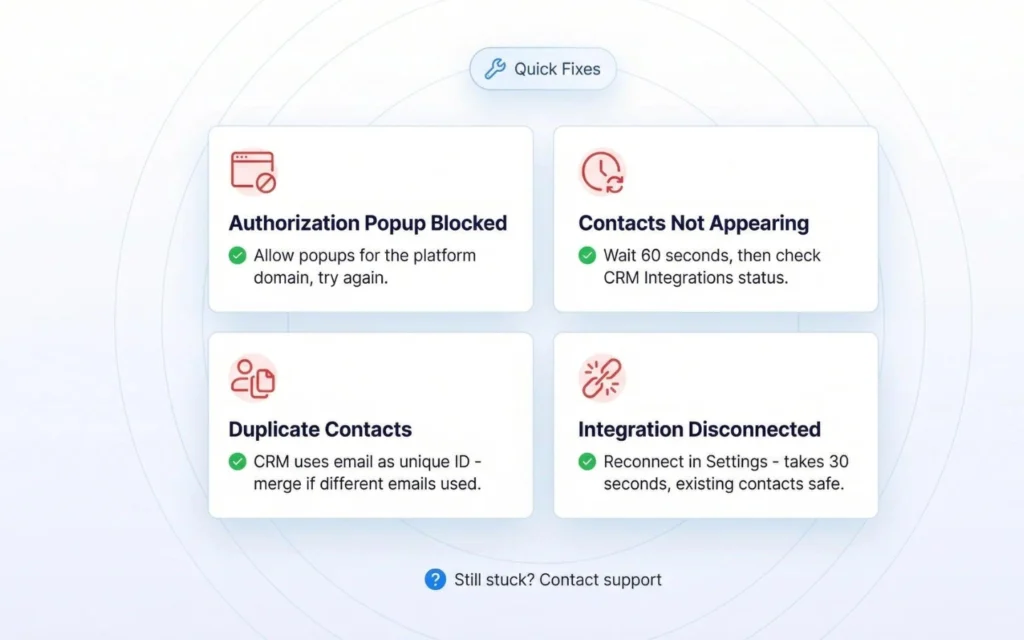
Each row is a starting point, not a confirmed cause. When the fix differs by plugin or CRM, use that vendor’s documentation.
| Symptom | Look first at | Next check |
| A submission does not appear in the CRM | Whether the entry was saved in WordPress. The integration’s response log or task history. Whether the CRM account is active (WPForms notes that a suspended HubSpot account stops new contacts while the form still works). Conditional logic that blocked the send. | Resend the entry if the tool allows it. Reconnect the account. For Salesforce, confirm your edition has API access. |
| A record appears but some fields are empty | The field map. Field types. Required or restricted CRM fields. In HubSpot with WPForms, unregistered site domains can lead to filtered submissions. | Add the domain to HubSpot’s tracking settings. Re-map the field and test again, then read the saved record. |
| Duplicate contacts or leads | Two connections on one form. Several forms feeding the CRM. The matching field. Repeat submissions. | Disable one connection. Review the CRM’s duplicate settings. Re-test with the same email twice. For HubSpot non-HubSpot forms, check whether a form change created a second form entry (a user-reported issue). |
| File uploads do not reach the destination | Whether the connector documents file support. Whether the CRM field accepts files or only text. | Test one small file. If it’s unsupported, store uploads with a file add-on (WPForms Pro lists Google Drive and Dropbox add-ons) and put the link in a CRM note. Older community reports of missing uploads reflect past problems, not the current state. |
| UTM or lead-source data is missing | Whether the hidden field is filled. Whether the UTM values survive redirects and caching. Whether the map includes a CRM property for each value. | Open the form through a URL with known UTM values. Check the hidden field, then the entry, then the CRM record. |
| The integration stops after an update | Version requirements. Expired or revoked authorization. Changed settings. | Check the vendor’s changelog and requirements. Reconnect the account. Ninja Forms’ HubSpot changelog records past fixes for refresh tokens and settings resets, which shows why reauthorizing is worth trying. Test updates on a staging copy where you can. |
| The CRM reports an authentication, permission, API or validation error | Authentication: reconnect and use the supported method. Permission: the CRM user’s role. API: your edition. Validation: required fields and formats. | WPForms’ Salesforce guide ties an invalid_client_id error to skipped waiting time, wrong OAuth settings or mis-copied keys. Read the exact error text and search the vendor’s documentation for it. |
What Will the Integration Cost?
The advertised price is only one line of the bill. Add up each layer:
- The form-plugin licence, and the tier the add-on needs.
- Any separate fee for the CRM add-on or connector.
- The CRM subscription, its edition and the number of users.
- The automation platform plan, if you use one, and its usage limits.
- Renewal prices, extra sites, and taxes.
Prices we could verify
Prices are in USD and were checked against the vendors’ pages on October 13, 2026. The listed promotional rates may not be available to every buyer, and renewals can be higher. Confirm the final price, region, taxes and renewal amount at checkout.
| Product | Listed price | Notes |
| WPForms Basic, Plus, Pro, Elite | Introductory: $49.50, $99.50, $199.50, $299.50 per year. Listed regular prices: $99, $199, $399, $599. Prices are promotional and renew at full price. | All prices are USD before VAT or other taxes. HubSpot, Salesforce, Zoho CRM, Pipedrive, ActiveCampaign and Webhooks are Elite features. Zapier and Make connections are shown in Pro and Elite. Confirm checkout and renewal terms. |
| Gravity Forms Basic, Pro, Elite | $59, $159, $259 per year. | HubSpot add-on is included with every licence. Zoho CRM add-on requires Pro, Elite or Nonprofit. The current pricing page shows annual prices; confirm any renewal or promotion terms before purchase. |
| Ninja Forms HubSpot add-on | Standalone price not confirmed. | The current Ninja Forms page says “Free for Pro Members”. The public information reviewed here doesn’t settle the standalone price for every licence. Confirm the exact product and total at checkout, and don’t rely on older quoted prices. |
| Salesforce API access | Professional requires a paid add-on; other edition rules apply. | Enterprise, Unlimited, Performance and Developer include API access by default. Professional can add the Web Services API product; Group and Essentials cannot. Confirm current requirements with Salesforce. |
Automation platform free plans
These figures come from the vendors’ current public pricing pages. Limits and feature names can change, so confirm the live plan before you choose a workflow.
| Platform | Current free-plan details checked on vendor pages |
| Zapier Free | 100 tasks per month; two-step Zaps (one trigger and one action). Multi-step Zaps and Webhooks are paid-plan features on the current pricing page. |
| Make Free | Up to 1,000 credits per month and a 15-minute minimum interval between scheduled runs. |
Usage depends on the number of actions or modules that run, not just the number of form submissions. A workflow that creates a contact, adds a note and sends a notification can use several tasks or credits for one submission. Check each platform’s counting rules and estimate usage from your actual steps and monthly volume.
Which route costs less depends on your workflow. A native add-on may require a higher form-plugin tier, while an automation platform may charge by usage and add another service to maintain. Compare year-one and renewal costs, including site limits, task or credit limits, CRM plans and any extra features you need.
Frequently Asked Questions
Can I connect WordPress forms to a CRM without coding?
Often, yes. Native add-ons and many automation routes can be configured without writing code, but you’ll still need to set them up and test them. A Salesforce connection may involve creating an app and setting permissions, while webhooks and direct API routes usually need technical knowledge. The right method depends on your exact form, CRM, plan and workflow.
Which is easier: a native add-on, connector plugin or automation platform?
A native add-on is often the simplest starting point when it supports your exact combination. A connector plugin or automation platform may fit better if the native add-on is unavailable or can’t do what you need. An automation platform adds another account, possible usage charges and another place to check for errors.
Do I need a paid form-plugin plan?
It depends on the exact connection. WPForms currently places its HubSpot, Salesforce, Zoho CRM, and Pipedrive add-ons in Elite. Gravity Forms includes HubSpot with every licence and Zoho CRM with Pro, Elite, and Nonprofit. Other integrations have different requirements, so check the vendor’s current plan page.
Why is my WordPress form submission not appearing in my CRM?
Start with the troubleshooting table. First confirm the entry was saved in WordPress, then read the integration’s response log or task history.
How do I prevent duplicate CRM records?
Avoid two connections doing the same job, use the matching option your tool documents, and test the same email twice before launch.
Will file uploads and UTM tracking data transfer?
Sometimes. File and tracking support varies by connector. Gravity Forms says its Zoho CRM integration can send uploaded files, while HubSpot’s non-HubSpot form capture does not collect hidden UTM fields. Check the current documentation for your exact integration, and test with a sample file and known UTM values before launch.
Does Salesforce require API access?
The integrations described here use Salesforce API access. Enterprise, Unlimited, Developer, and Performance include it by default. Professional requires the Web Services API add-on, and Group and Essentials can’t add API access. The Salesforce user also needs the required API permission. Confirm the current requirements with Salesforce and the connector vendor.
Can Contact Form 7 connect to a CRM without a developer?
Yes, through a third-party connector plugin or an automation platform. Pick carefully, check maintenance, and run the tests.
How do I check the integration is working after launch?
After launch, inspect the integration logs or task history and reconcile form entries with successful creates, updates and failures. Keep a notification email or form-entry copy as a temporary fallback if appropriate, and run a small test after meaningful updates. Don’t rely on a simple count of new CRM records as your only monitoring signal.
Conclusion
Before you buy, confirm that your form plugin, CRM, licences and account permissions work together. Choose the simplest route that fits, map only the fields you need, and inspect the saved CRM record instead of trusting the settings screen. Test repeat submissions, validation, files and tracking where they apply. After launch, monitor both successes and failures, and repeat the tests whenever you change the form, the integration or the CRM settings.