

Yes, Clockify works well if you bill by the hour, juggle lots of client projects, and don’t mind getting paid outside the app. One catch: “free” runs out fast. Hourly rates, invoices, and expenses each sit on a different paid plan.
This guide is for freelancers, solo consultants, and service teams. Prices are in US dollars at list price, before tax. For each point, I’ll tell you whether it’s a documented fact, a user’s personal report, or my own recommendation.
Quick answer: which Clockify plan do you need?
Think of Clockify as a ladder. Each rung unlocks one job.
| What you need | Plan | Price per seat, per month |
| Track time and print a simple PDF report | Free | $0 |
| Put hourly rates on your work | Basic | $3.99 billed annually ($4.99 monthly) |
| Create invoices from tracked time | Standard | $5.49 billed annually ($6.99 monthly) |
| Add expenses to invoices, set a currency per client | Pro | $7.99 billed annually ($9.99 monthly) |
Source: Clockify pricing page, checked 6 and 7 November 2026. Clockify says annual plans are prepaid, and taxes like VAT may be added at checkout depending on your country.
A one-person workspace on Standard costs $5.49 x 12 = $65.88 a year. At an example rate of $75 an hour, that’s about 53 minutes of billable work.
One honest warning: with one or two active projects, Harvest might beat Clockify. Harvest’s Free plan gives you one seat, two projects, time tracking, invoicing, and expense tracking for $0. Clockify wins on two points: no project cap on Free, and cheaper paid plans. Got three or more projects and want invoices? Clockify Standard is the cheaper route.
What changed on the Free plan in 2026
Clockify Free still does a lot, but it’s no longer “unlimited everything.” The pricing page shows this today:
- Up to five users. The FAQ says you can invite up to four people for free, so that’s you plus four.
- A one-month report range.
- PDF-only report export. Paid plans add more export options.
- Public projects only. Basic unlocks private and public projects.
You still get unlimited tracking and unlimited projects, a timer with manual entry, timesheets, a calendar, an auto tracker, mobile and desktop apps (with offline tracking), a Pomodoro timer, idle reminders, tracking integrations, and reports.
Does this hurt a solo freelancer? The five-user cap won’t. The one-month report range and PDF-only export might, since client reports and tax-season records often need longer periods. Free also leaves out billable rates.
Why other sites still say “unlimited users”
Old posts never got updated. A ones.com roundup dated 10 October 2026 still calls the free plan unlimited, and so do some Reddit comparisons. When a page disagrees with Clockify’s pricing page, trust the pricing page. Outside coverage, like timesheet.io (30 May 2026), dates the change to April 2026. Clockify’s page gives no date, so treat April as reported, not confirmed.
A Free-plan question I could not settle
- Can you flag an entry “billable” on Free without setting a rate? The pricing page lists “billable rates” on Basic and says nothing about the flag. In my trial, the timer bar has a $ icon that turns blue when an entry is billable. But the trial runs on Pro features, so that doesn’t show what Free does. The trial’s feature list also names “Billability,” which hints that billable tools are paid, though it doesn’t say whether the flag itself is. One r/freelance commenter (27 May 2026) said they were unhappy about paying for the toggle. That’s one person’s report, and I couldn’t confirm it.
What each paid plan unlocks for a freelancer
Basic: hourly rates and better exports
Basic adds billable rates, historical rates (apply a new rate to past entries), CSV and Excel export, private projects, project templates, and bulk edit. Pick Basic if you only want Clockify to show what your hours are worth and you invoice somewhere else.
Standard: invoices
Standard adds invoicing, recurring invoices, approvals, time locking, task rates, time rounding, time off, attendance and overtime, targets and reminders, a manager role, and the QuickBooks integration. Rounding matters more than it sounds. It fixes a problem I explain in the invoicing section below.
Pro: expenses and client currencies
Pro adds expenses, a currency per client, project budgets and estimates, forecasting, scheduling, email reports, activity monitoring, and GPS tracking. Here’s the key point for invoicing: Standard lets you invoice your time. Expenses are a Pro feature, so putting them on an invoice needs Pro.
Invoicing and getting paid
Here’s how invoicing works, based on Clockify’s invoicing help page (last modified 9 October 2026):
- Open the Invoices page in the web app. Invoice creation doesn’t work in the mobile apps, and an admin has to switch it on in Workspace settings.
- Click Create invoice, pick the client, and set the currency, invoice number, and dates.
- Use Import time and expenses to pull in your tracked entries. You can show them as one line, one line per entry, or grouped by project, user, or date.
- Send the invoice. Your client gets an email with a link to a PDF and a four-digit PIN to open it. You can attach a time report too.
- Mark it Sent, Paid, or Void. Imported entries get an “invoiced” tag, so you never bill the same hours twice.
You can also start from a report. The report screen has its own Create invoice button (see Figure 3 below).
Can clients pay through a Clockify invoice?
Not as far as I can find. The help page describes recording a payment by hand. On the invoice screen in my trial, the visible buttons are Download invoice, Send invoice, Recurring settings, and an Actions menu (see Figure 4). I saw no payment-link option. I couldn’t confirm what sits inside the Actions menu, so check it in your own trial if online payment matters to you.
Here’s what you can do instead:
- Download the invoice as a PDF, or use Send invoice to email it.
- Type your payment instructions into the invoice’s Notes field.
- Record the payment by hand after your client pays another way, such as a bank transfer or a separate payment link.
If you need clients to pay by card from the invoice, test the flow yourself first, or look at Harvest. Harvest’s paid Teams plan lists Stripe, QuickBooks Online, and Xero integrations, and its help center explains the payment options.
The rounding gotcha nobody warns you about
Clockify invoices round each time entry to two decimals, but reports use more decimals. So your report and your invoice can differ by a few cents.
- A 20-minute entry at $100 an hour shows $33.33 in a report. On an invoice it becomes 0.33 hours, or $33.00.
- Three 20-minute entries imported as separate lines come to $99.00. Grouped by project, the same hours come to $100.00.
Clockify suggests this fix: turn on “Round time in reports” under Workspace settings, then Time tracking, and round to the nearest 6 minutes (0.1 hour). Rounding is a Standard feature, the same plan that gives you invoices. In my trial, the report screen has a Rounding switch, and it was off.
Small tip: Clockify only does percentage discounts. For a flat discount, add a line item named “Discount” with a negative price.
Next step: want to see your own invoice before you pay? Clockify offers a 7-day Pro trial with no credit card. Create one real invoice from your own entries, and check the totals against your report.
My test: timer, report, and invoice screen
I tested this and it is working well. I started Clockify’s 7-day Pro trial on 7 November 2026 and tried the timer, the reports, and the invoice screen. Here is what I saw. I have not yet built a full invoice from my own tracked time, so I am not claiming that part.
- Start the trial. A “Your trial starts today!” screen says you get Pro features free for 7 days with no credit card, and that you can stay on the Free plan or upgrade when it ends. It lists what the trial unlocks, including Invoicing, Expenses, Billability, Export data, Activity monitoring, and GPS tracking (Figure 1).
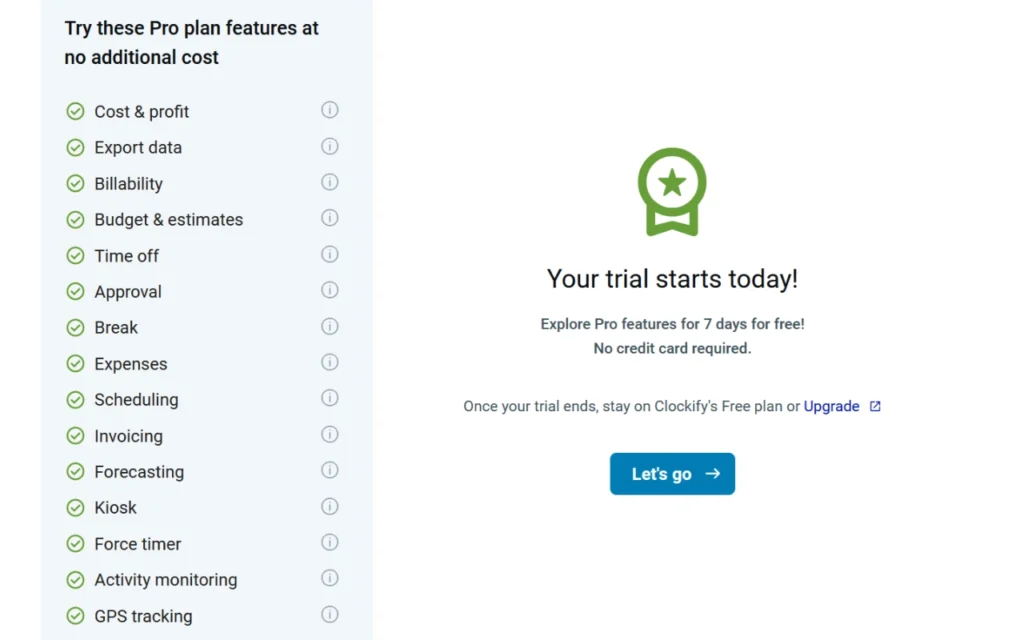
Figure 1: The Pro trial start screen, 7 November 2026.
- Answer one setup question. Clockify asks for your main goal, your team size, and your billing model. The goal list includes “Bill clients accurately” and also “Monitor employee screens or location.”
- Expect sample data. A banner says you are using sample data, with a Remove sample data button. Sample projects, clients, invoices, and approvals all carry [SAMPLE] in their names. Remove the sample data before you test with your own work.
- Run a timer. I typed a description, picked a sample project and client, and started the timer. The $ icon in the timer bar was blue, which marks the entry billable (Figure 2).
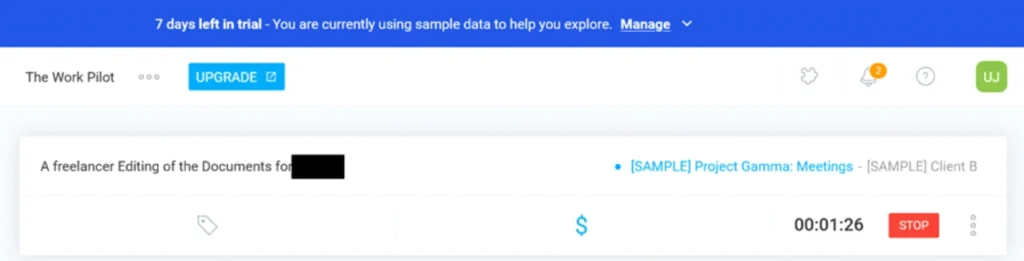
Figure 2: A running timer with the $ icon on.
- Watch where the time shows up. The calendar showed my running entry on Saturday 7 November right away. My dashboard still showed 00:00:00 for the week while the timer was running, so a running timer may not count in totals until you stop it.
- Open a report. The summary report in the trial’s sample data shows 124:00:00 tracked, 88:00:00 billable, and an amount of 1,084.00 USD. It breaks that down by project. One internal project had 21 hours at 0.00 USD, which is how a report separates work you can bill from work you can’t. The screen also has a Create invoice button (Figure 3). My trial showed amounts with a comma decimal (1.084,00 USD) and dates as day/month/year, so check the format before you send anything to a US client.
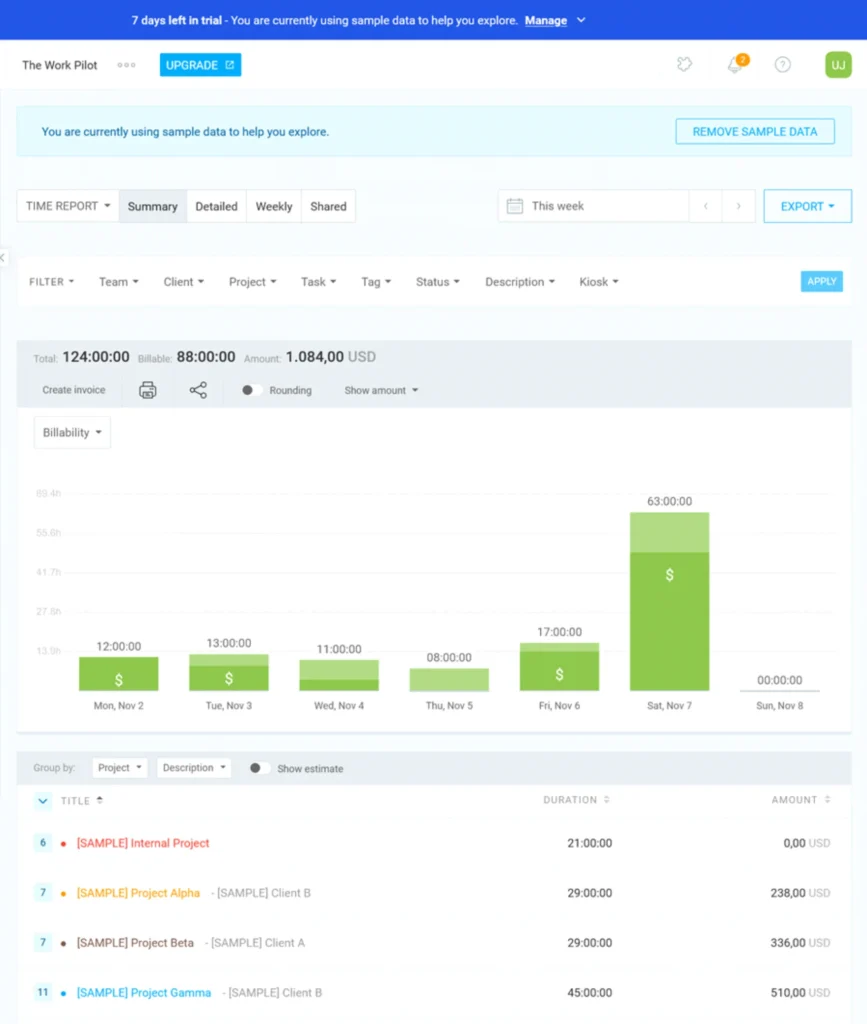
Figure 3: A summary report built from the trial’s sample data.
- Open the invoice screen. A sample invoice shows Bill from (your workspace name) and Bill to (the client), each with an Add address button, plus an optional subject. Below sit the invoice items table, an Import time and expenses button, Add new item, Add discount, Add tax, the totals, and an optional Notes box. The status badge reads Unsent (Figure 4).
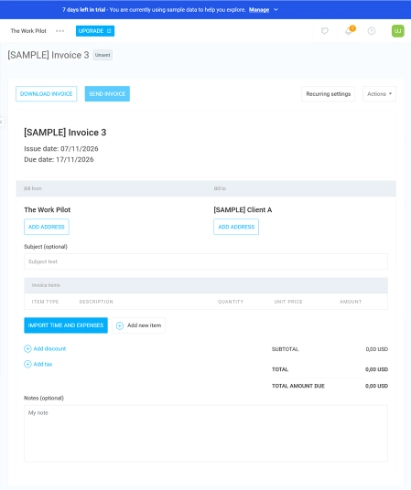
Figure 4: The invoice screen on a sample invoice.
What I did not cover: setting a billable rate on a project, importing my own tracked time into an invoice, and comparing the report total with the invoice total. Try those three steps in your own trial before you trust the numbers.
A heads-up: because the trial turns on Pro features, I was not seeing what Free looks like. Check the Free limits after the trial ends. I’ve tried lots of different apps over the years, and Clockify is one of the best I’ve found.
Clients in other currencies
Clockify’s currency help page says admins on all plans can set up several currencies for the workspace. Giving an individual client their own currency needs Pro or higher.
When you create an invoice, you can change its currency, and recorded payments show in the client’s currency. What I could not confirm is whether your hourly rate converts into that currency or stays the same number.Test one client in a non-default currency in your trial before you quote prices.
Free plan features and platform limits
Clockify’s Free plan includes mobile and desktop apps with offline tracking. Two catches:
- Invoices are paid and web-only. Invoicing needs Standard or higher and works only in the web app. Use the mobile app for tracking, not billing.
- Reliability reports vary. A post in r/remotework mentioned occasional mobile app bugs and delayed syncing. That’s one person’s report, not a documented defect.
Nobody has verified, in official documentation, the claim that timers drop when you switch between Wi-Fi and cellular. If mobile tracking is central to your work, test it across network switches before you rely on it.
Does Clockify watch your screen?
Three separate features get mixed up, so here they are one by one:
- Auto tracker (Free): records app and website use. Clockify says only you can see that data.
- Activity monitoring (Pro): can capture screenshots from the desktop app, but only if an admin turns it on. Users are notified when it’s active. The trial’s feature list shows it as a Pro feature.
- GPS tracking (Pro): location tracking through the mobile app, when an admin enables it and you grant permission.
That comes from Clockify’s data-handling page. In your own workspace, you’re the admin, so you’re in full control. As I read the documentation, if a client invites you into their workspace, they’re the admin and they control those settings. Agree on tracking with the client before you log time there.
Leaving Clockify: what happens to your data
- Cancelling a paid plan moves your workspace to Free. Clockify’s FAQ says you don’t lose data, only access to the paid features.
- Deleting a workspace or account is permanent and can’t be undone. Export your data first. See the delete-account help page.
- Shared workspaces: time entries you logged in a client’s or third party’s workspace stay there under your profile until that owner removes them or deletes the workspace.
- Exporting your history: Free exports reports as PDF only, over a one-month range, and the trial’s feature list names “Export data” among the paid features. Before you rely on Free for years of records, check how you would get your full history out.
What real users say
These are small, hand-picked samples from public posts. They show themes, not a headcount. Some come from communities run by competing products, so I leaned on posts from general communities.
- Affordable, flexible project tracking. A r/Notion commenter (5 January 2026) said they pay for Clockify and like filtering reports by client, project, tag, and billable status.
- Forgot to stop the timer? A r/productivity user (12 July 2024) liked being able to edit entries later and add time manually.
- Clockify for time, another tool for billing. A r/smallbusiness poster (6 November 2024) tracks in Clockify and moves the data to QuickBooks for invoicing.
- Harvest for built-in invoicing. The same r/remotework post points to Harvest for integrated invoicing and budgets.
- Free-plan change noticed. A r/smallbusiness user (12 August 2026) said Clockify recently limited its free plan to five users.
What it really costs: Clockify vs Harvest, Toggl Track, and Bonsai
Annual list prices in USD, before tax, worked out as monthly price x seats x 12:
| Tool and plan | Solo | 2 seats | 5 seats |
| Clockify Standard | $65.88 | $131.76 | $329.40 |
| Clockify Pro | $95.88 | $191.76 | $479.40 |
| Harvest Free | $0 | n/a | n/a |
| Harvest Teams | $108 | $216 | $540 |
| Toggl Starter | $108 | $216 | $540 |
| Toggl Premium | $216 | $432 | $1,080 |
| Bonsai Essentials | $228 | $456 | $1,140 |
Read these notes before you compare:
- Clockify: from its pricing page. Standard covers invoicing. Pro adds expenses and client currencies.
- Harvest Free is one seat and two projects. Harvest Teams is $9 per seat per month billed annually, or $11 monthly. Extra invoices, projects, clients, and tasks are billed by usage, so treat that price as a floor. Timesheet approvals are on Enterprise, from $14 per seat annually. Source: Harvest pricing.
- {{Toggl Track|https://support.toggl.com/payment-plans-at-toggl-track}}: Starter starts at $9 per user/month and Premium at $18 per user/month. Billable rates need Starter. Toggl’s pricing page lists PDF invoice generation, but I could not see which plan includes it.
- Bonsai Essentials: $19 per user per month billed annually, or $25 monthly. It includes invoices and payments, proposals and contracts, a client portal, and expense tracking. Online payments carry processing fees that vary by method. Source: Bonsai pricing.
Which tool for which situation?
| Your situation | Start with | Why |
| Solo, two or fewer projects, want invoices for free | Harvest Free | Invoicing is included at $0 |
| Many projects, want invoices at the lowest paid price | Clockify Standard | $5.49 per seat annually, no project cap |
| Only need rates, invoice elsewhere | Clockify Basic | $3.99 per seat annually |
| Clients must pay from the invoice | Harvest Teams or Bonsai Essentials | Both list payment features; Clockify documents manual recording |
| Want proposals, contracts, and a client portal | Bonsai Essentials | Bundled with invoices and payments |
Who should use Clockify, and who should skip it
Clockify suits you if
- You bill hourly across several clients and want detailed time records.
- You want the lowest paid price for invoicing.
- You’re happy to record payments by hand or collect them somewhere else.
Look elsewhere if
- You have two or fewer projects and want free invoicing (try Harvest Free).
- You need clients to pay online from the invoice (compare Harvest or Bonsai).
- You track mostly from your phone and need proven reliability (test first).
- You need to bill expenses and don’t want to pay for Pro.
Your next step
Not sure yet? Do this in order:
- Read the current Clockify plan limits so you know exactly what Free covers.
- To see rates and invoices working on your own projects, start the 7-day Pro trial (Clockify says no credit card is needed).
- Before the trial ends, create one invoice and compare it to your report.
- If online payment is your bottleneck, compare Harvest’s plans before you pay for anything.
The links in this article go to each vendor’s normal pages.
Frequently asked questions
Is Clockify still free in 2026?
Yes, for up to five users. Free reports cover one month and export as PDF only.
Can I create invoices on the free plan?
No. Invoicing starts on Standard.
Can I set hourly rates on Free?
No. Billable rates need Basic or higher. Whether you can still flag an entry as billable on Free is unconfirmed. My trial’s timer bar has a $ icon, but the trial runs on Pro features.
Can I add expenses to an invoice on Standard?
Expenses are a Pro feature, so adding them to invoices needs Pro.
Can my client pay through a Clockify invoice?
Not that I can find. The help page describes recording payments by hand, and the invoice screen in my trial showed no payment button. If clients must pay online, plan on another tool for that step. Harvest and Bonsai both list payment features. Clockify’s pricing page lists a QuickBooks integration on Standard.
Does Clockify offer refunds?
Not in general. Clockify says it only refunds mistaken charges caused by a system error, and it recommends using the free 7-day trial before you pay.
How do I pay?
Credit card on all plans. Wire transfers and purchase orders are available for larger annual multi-seat purchases.
How I researched this
I checked Clockify’s pricing page and invoicing help page, Harvest’s and Bonsai’s pricing pages, and Toggl’s support and pricing pages on 6 and 7 November 2026. I ran Clockify’s Pro trial on 7 November 2026. I also read public community posts from 2024 to 2026 and treated them as personal reports.
Mobile timer reliability, whether currencies convert on invoices, the exact Free report window, the billable flag on Free, whether any online payment option sits in the invoice Actions menu, a full invoice built from my own tracked time, and which Toggl plan includes invoices. Prices change, so check the vendor’s page before you buy.