You search for free video conferencing software, click the first result, and sign up. Then it asks for your card number. That’s not free, that’s a trial with a deadline.
Plenty of tools call themselves free when they’re running a trial in disguise. Miss that at signup and you find out when the charge hits your statement.
That surprise costs more than money if you’re a freelancer or running a small team. It’s the time you spent setting things up, inviting everyone, and getting comfortable with a tool you now have to drop.
So every tool in this guide has a free plan, no card required. I checked each one against the provider’s own current pricing page instead of pulling numbers from another list. That matters, because these plans change, sometimes without much notice, and this is meant to work as free web conference software you can plan around, not a list that goes stale in six months.
You’ll also get what most guides skip: time limits, participant caps, recording restrictions, and the upgrade nudges that show up once you’re using the tool day to day. Some of it won’t matter to you. Some of it might change which tool you pick.
Quick answer: best free video conferencing software for small teams
Best overall: Zoom, a 100-participant limit and useful free features like whiteboards, no card needed to start.
Best for unlimited meetings: Jitsi Meet, free, no time cap, no account required.
Best for client calls: Whereby, send a link and your client’s in, no download, no waiting around, though free meetings are capped at 30 minutes.
Every number below came from each provider’s own pricing page, not from another roundup. Full reviews follow, including where each pick falls short.
What “free” means (and where the catch is)

“Free” gets used loosely in software marketing.
Some tools offer a plan you can use forever. Others offer a trial, 14 or 30 days, then start charging once it ends. Both often use the same word on the homepage, so you won’t know which one you’re dealing with until you’re in the signup flow.
That’s where the credit card question matters. A free plan doesn’t ask for payment details before you’ve joined a call. A trial always does, because the whole point is to bill you automatically once the countdown ends.
Then there’s software that’s free with limits attached: meetings capped at 40 minutes, only 100 people allowed in, recording locked behind an upgrade. None of that makes a tool bad. It just means you need to know about it going in, instead of finding out mid-meeting when the call cuts off.
The point of this guide isn’t to talk you out of free video conferencing platforms. Plenty of them are good enough for small teams and client calls. The point is knowing what you’re getting before you build a workflow around one, since free plans do change, and what’s true today may not hold a year from now.
Quick comparison table
Here’s a fast side-by-side of every pick covered in this guide, useful if you just want the numbers for free web conferencing before reading the full reviews.
| Software | Free Participants | Meeting Time Limit | Credit Card Required | Recording Included | Best For |
| Zoom | 100 | 40 minutes (group) | No | Local only | Overall use, small teams |
| Google Meet | 100 | 60 minutes (group) | No | No | Google Workspace users |
| Jitsi Meet | No hard cap | None | No | Self-hosted setup only | Unlimited meetings, privacy |
| Whereby | 4 | 30 minutes | No | No | Client calls, freelancers |
| Zoho Meeting | 100 | 60 minutes | No | Included, cloud-saved | Budget-conscious small teams |
| Cisco Webex | 100 | 40 minutes | No | Local recording included | Teams wanting enterprise polish |
| Microsoft Teams | ~100 | 60 minutes | No | Not included | Microsoft 365 users |
Two entries here changed from what you’ll see in older comparisons. Whereby’s Free plan picked up a 30-minute meeting cap in January 2025, it’s no longer unlimited. Microsoft Teams’ free tier has never included meeting recording at all, that’s strictly a Microsoft 365 subscription feature. Both are reflected above and in the reviews below.
The best free video conferencing software for small teams
1. Zoom, the best overall pick for small teams

Zoom barely needs an introduction at this point. It’s the name most people reach for first when someone says “let’s hop on a call.”
I tested Zoom on June 2, 2026. Getting in is about as simple as it gets: search “Zoom,” land on zoom.us, and join through the Workplace app or straight from your browser. Click join from the browser and the only interruption is a quick camera permission prompt. The plain white interface with a blue accent still feels professional rather than cluttered, even if you’ve never used it before.
Best for
Zoom is the right default whenever someone outside your own team is joining, a client, a candidate, and a vendor, because it’s the one tool most people have used somewhere, so nobody needs help getting in. It also works well for teams running daily standups or juggling a few projects at once who just want something that doesn’t need extra setup.
Why it made this list
Zoom holds up in situations where other tools tend to struggle. It’s reliable even on weaker connections, and it’s the one most likely to just work for someone joining from outside your company. That matters more than a long feature list when you’re trying to close a deal.
Key features
The free plan includes screen sharing and team chat, covering most day-to-day meeting needs. It also comes with three editable whiteboards, a feature a lot of people don’t realize is included free.
Free plan details
- Up to 100 participants per meeting
- 40-minute limit on group meetings (3 or more people)
- Unlimited time for one-on-one calls
- No credit card required to sign up
- Recording is local only, saved to your device, not the cloud. See Zoom’s official pricing page for the current plan breakdown
Hidden limitations
The 40-minute cap trips people up most. It isn’t a technical wall Zoom has to enforce, it’s a business decision meant to nudge free users toward a paid plan. For a quick client call that’s rarely an issue. For a weekly team meeting that tends to run long, it’s a real problem: the call just cuts off mid-sentence with nothing but a countdown as warning.
Recording is another thing worth knowing ahead of time. Since it only saves locally, there’s no cloud copy to send a link to afterward. You’d have to upload and share the file yourself.
Ease of use
Hosting a meeting takes a few clicks, and joining is even simpler, most guests don’t need an account at all. Because so many people have already used Zoom somewhere else, you don’t have to explain how it works before a call starts.
Security and privacy
Zoom includes waiting rooms and meeting passwords on its free tier. For everyday business use and freelance client calls, that’s enough.
- Reliable call quality, even on average wifi
- Easiest platform for outside guests to join without confusion
- Free whiteboard tools included
- No credit card required
- 40-minute cap on group meetings
- Some users report the mobile app missing features available on desktop
- Heavier use of system resources on older laptops
- Recording is local only, no cloud storage on the free plan
Zoom is the right choice if your meetings run under 40 minutes, or if reliability and familiarity for outside guests matter more than anything else. If your team runs longer, keep reading, Jitsi Meet and Google Meet are next and neither has this problem.
2. Google Meet, the best pick for Google Workspace users
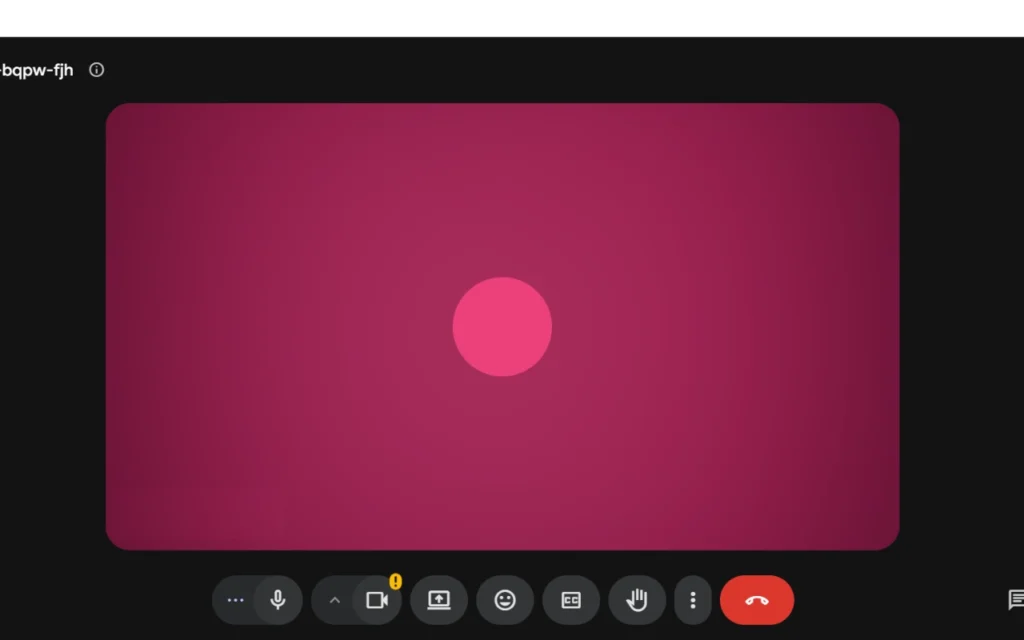
Google Meet is Google’s answer to video calling, built into the same ecosystem as Gmail and Google Calendar.
I tested it on July 11, 2026. Signing in was immediate since I already had a Gmail account. Hit New Meeting, and you’re off. Reactions worked well in testing too, clicking like or love floats the icon up the left side of the screen with your name attached.
Best for
Google Meet is the natural pick if your business runs on Gmail and Google Calendar day to day. Scheduling a call takes one click from a calendar invite instead of a separate booking step. It also works well for client meetings where a simple, no-download link makes a better first impression than asking someone to install software.
Why it made this list
It removes the friction most other tools still have: no app to install, no plugin to approve, just a link and a browser tab. Guests from outside your company don’t need an account to get in.
Key features
Screen sharing and meeting chat cover the essentials. Calendar integration is the standout: schedule an event in Google Calendar and the meeting link is attached. Live captions are included free too (the standard same-language captions, not Workspace’s translated-caption add-on). Mobile apps are solid on both iOS and Android.
Free plan details
- Up to 100 participants per meeting
- 60-minute limit on group meetings (3 or more people); one-on-one calls can run up to 24 hours
- No credit card required to sign up
- Recording is not included on the free plan. It requires a paid Google Workspace edition, Business Standard or above
Hidden limitations
Recording is the biggest gap. If you need to save a meeting for someone who couldn’t attend, the free plan won’t do that, it’s locked behind a Workspace subscription. Breakout rooms and polls are also missing from the free tier.
There’s a practical dependency too. Guests join fine without a Google account, but scheduling and calendar syncing only feel seamless if you’re on Gmail and Google Calendar.
Ease of use
One of the easiest tools on this list. Nothing to install, and joining is a single click from a calendar invite or shared link.
Security and privacy
Google Meet encrypts data in transit by default and includes basic host controls like removing participants or locking a meeting once it starts.
- No downloads, works in the browser
- Deep Google Calendar integration
- Live captions included free
- No credit card required
- No recording on the free plan
- 60-minute cap on group meetings
- Missing advanced features like breakout rooms
- Best experience assumes you’re using Google Workspace
Google Meet makes the most sense if your business runs on Gmail and Google Calendar. If free recording matters to you, or you’re not in Google’s ecosystem, Zoom or Jitsi Meet fit better.
3. Jitsi Meet, the best pick for unlimited meetings
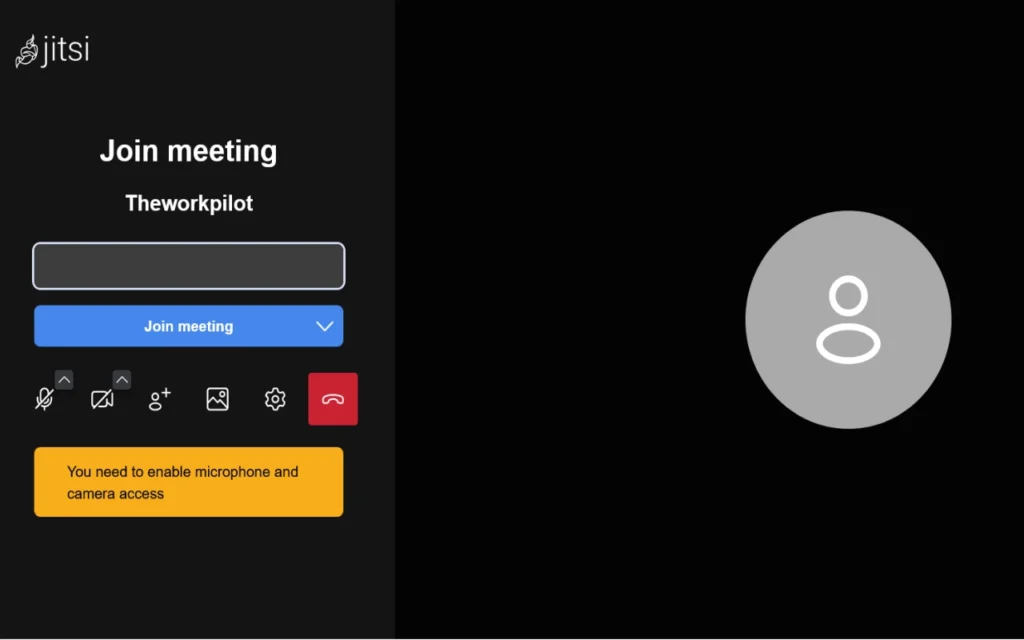
Jitsi Meet works differently from most tools here. It’s open-source, so anyone can look at how it’s built, and you don’t need an account to use it. Visit the Jitsi Meet project page if you want to see how it’s put together.
I tested Jitsi on July 24, 2026. Getting in is fast: type a room name (I used “theworkpilot”), click Join Meeting, and you’re in. The invite panel stood out for a free tool, it gives you a shareable link plus a phone number and PIN for dial-in.
Best for
Jitsi is the right fit if you don’t want a company collecting your meeting data, and for anyone running long or frequent calls that would hit a wall elsewhere: workshops, training sessions, anything that doesn’t fit neatly into 40 minutes.
Why it made this list
No meeting time cap, no account, no credit card anywhere in the process, mostly because there’s no signup process. If you’ve been searching for an unlimited free video call app, this is one of the few that delivers on it. Jitsi doesn’t even have a paid tier, so there’s no countdown pushing you toward a bill later.
Key features
Meetings run as long as you need them to. Screen sharing and chat are both included, and meetings can be password protected. Because the code is open source, privacy-focused users can verify how it handles data instead of taking a company’s word for it. Recording isn’t built into the standard free experience, it needs a self-hosted setup with an extra tool called Jibri, so most people won’t have it out of the box.
Free plan details
- No hard participant cap, though performance can vary with larger groups
- No meeting time limit
- No credit card required
- No account required to join or host
- Recording not available without a self-hosted setup
Hidden limitations
Jitsi often runs on a shared public server, so call quality can dip as more people join, something you’re less likely to notice on Zoom or Google Meet’s more heavily resourced infrastructure. There’s also no dedicated support team. If something breaks, you’re relying on community forums instead of a ticket.
Ease of use
Click a link and you’re in, no login screen, no download prompt. The interface is less polished than Zoom’s or Google Meet’s, so beginners might need a minute to find their way around.
Security and privacy
Transparency is the biggest draw. Anyone can review how the software handles data. Organizations with stricter privacy needs can also self-host it on their own servers, which isn’t an option with Zoom, Google Meet, or Microsoft Teams.
- No time limit on meetings
- No account or credit card required
- Open source and fully transparent
- Self-hosting option for full data control
- Call quality can dip in larger meetings
- No dedicated customer support
- No built-in recording without extra setup
Choose Jitsi Meet if you want a free tool with zero time pressure. If built-in recording is a must-have, Zoom and Whereby are worth a look next.
4. Whereby, the best pick for client calls
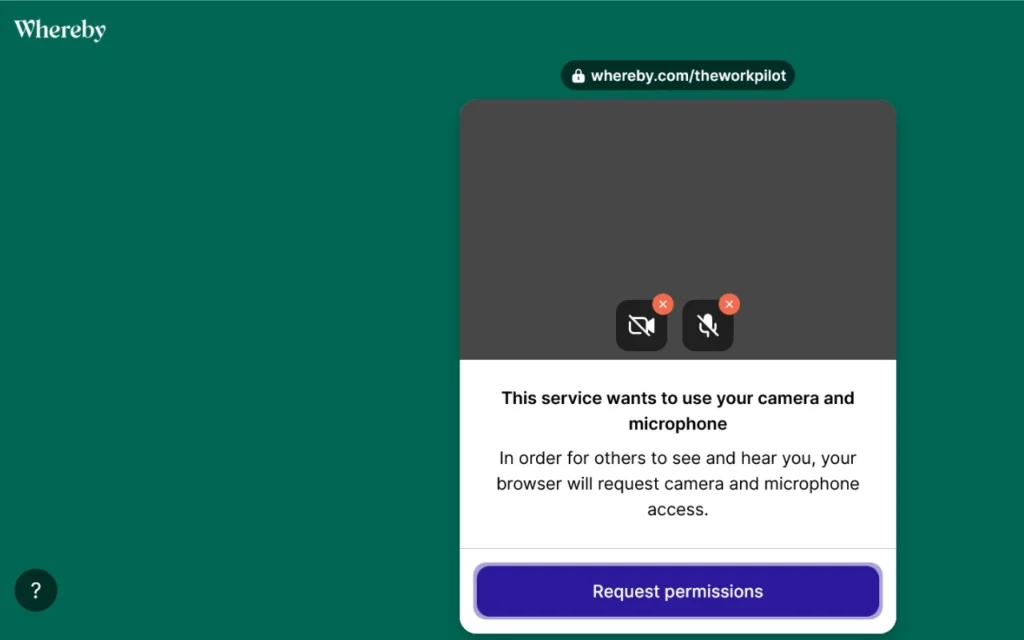
Whereby is built around one idea: meetings should be as simple as clicking a link. It’s browser-based, so there’s nothing to install.
I tested it on July 18, 2026. Setting up a room took seconds, I named mine “theworkpilot,” confirmed camera and mic access with a one-click prompt, and was in. A nice touch: a “let’s test the call” step gives you a QR code to join from your phone. Reactions worked well too, a thumbs-up appeared over the video feed with a live count in chat.
Best for
Whereby works best for freelancers and consultants running the same kind of client call week after week, where a permanent, reusable link matters more than a large participant count.
Why it made this list
Whereby removes the one thing that ruins a first impression: friction. Your client doesn’t download an app or create an account. You send a link, they click it, and you’re both in. It also gives you a permanent meeting room with a fixed link, reusable for every call with that client.
Key features
The permanent room is the standout feature. Once it’s set up, the link stays the same forever, so a client can just bookmark it. Screen sharing and chat cover the basics, and mobile support means a client joining from their phone gets the same no-download experience as someone on a laptop.
Free plan details
- Up to 4 participants per meeting
- 30-minute time limit per meeting. This is a January 2025 policy change, the Free plan used to be unlimited and no longer is
- No credit card required
- Recording is not included on the free plan
- One permanent meeting room included
Hidden limitations
Two numbers matter here, not just one. The 4-participant cap is a non-issue for a one-on-one client call, but it gets tight fast if two of a client’s teammates join. The 30-minute cap is the one to actually plan around: a call that tends to run long will get cut off with no real warning beyond what Whereby shows on screen. Whereby also isn’t built for internal team meetings at scale, it’s optimized for smaller, client-facing calls, not full staff meetings. If your business needs both, you’ll likely need a second tool alongside it.
Ease of use
No learning curve for guests at all, they click a link and they’re in within seconds.
Security and privacy
Whereby is based in Norway, which is a real edge for anyone working with UK or EU clients: European data hosting comes standard, not something you configure yourself.
- Zero friction for guests, no downloads or accounts needed
- Permanent meeting room with a reusable link
- European data hosting built in by default
- No credit card required
- Capped at 4 participants on the free plan
- Capped at 30 minutes per meeting on the free plan, not unlimited
- No recording on the free tier
- Not designed for larger internal team meetings
Whereby is the right choice for short, recurring client calls where the smoothest possible guest experience matters most. If your calls tend to run past 30 minutes, or involve more than 4 people, Zoom or Zoho Meeting will serve you better.
5. Zoho Meeting, the best pick for budget-conscious small teams
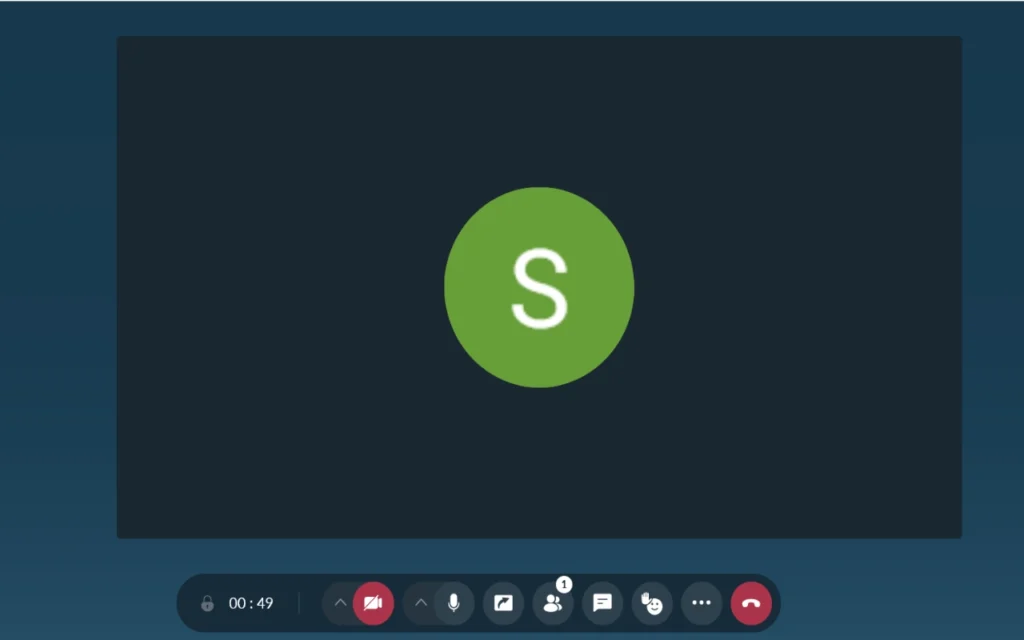
Zoho Meeting is part of the larger Zoho ecosystem, the same company behind Zoho CRM and Zoho Books.
I tested it on July 20, 2026, signing in with Google. The layout splits into Home, Meetings, Webinars, Calls, Calendar, and Files. The in-call toolbar is clean, camera, mic, screen share, participants, chat, reactions, and a dedicated Raise Hand button.
Best for
If you’re looking for the best free video conferencing for small business specifically, Zoho Meeting is a solid starting point, especially once you’ve outgrown Whereby’s 4-person cap but don’t need Zoom’s full feature set. It’s also a natural fit if you already use other Zoho products, since the integration saves real time.
Why it made this list
The free plan is free forever, not a countdown to a bill. No credit card, and none of the aggressive nagging some free tools use. It gives you a full hour before a meeting cuts off, versus Zoom’s 40 minutes, and supports up to 100 people, versus Whereby’s 4.
Key features
Video meetings and screen sharing cover the core of what most small teams need day to day. Scheduling and calendar integration are built in, and mobile apps are available for iOS and Android.
Free plan details
- Up to 100 participants per meeting
- 60-minute time limit on meetings
- No credit card required
- Recording is included on the free plan and saved to cloud storage. Zoho’s own pricing page describes this as available without a hard storage cap, though I’d still confirm current limits there before relying on it heavily, since third-party sources aren’t consistent on this detail
- Free forever, not a trial
Hidden limitations
The collaboration tools are lighter than Zoom’s. There’s no built-in whiteboard, and the app ecosystem around Zoho Meeting is smaller than the bigger platforms, so check that your specific integrations connect before committing.
Ease of use
Joining doesn’t require downloading anything, similar to Google Meet and Whereby. If you’re already using other Zoho apps, scheduling a meeting can tie directly into a CRM contact or calendar entry you’re already working from.
Security and privacy
Meetings can be locked and password protected, the same basic control you’d expect from any business-grade tool.
- Free forever, not a disguised trial
- Full 60-minute meeting length before any cutoff
- Recording included on the free plan
- No credit card required
- Useful integration if you already use Zoho’s other products
- No built-in whiteboard or advanced collaboration tools
- Smaller third-party app ecosystem than Zoom or Google Meet
- Less brand recognition, some guests may be less familiar with it than Zoom
Zoho Meeting is the right pick if you want more room than Whereby’s cap and a longer runway than Zoom’s 40 minutes, especially if you’re already inside the Zoho ecosystem. If whiteboards or breakout rooms matter to you, Zoom is still the stronger choice.
6. Microsoft Teams, the best pick for Microsoft 365 users
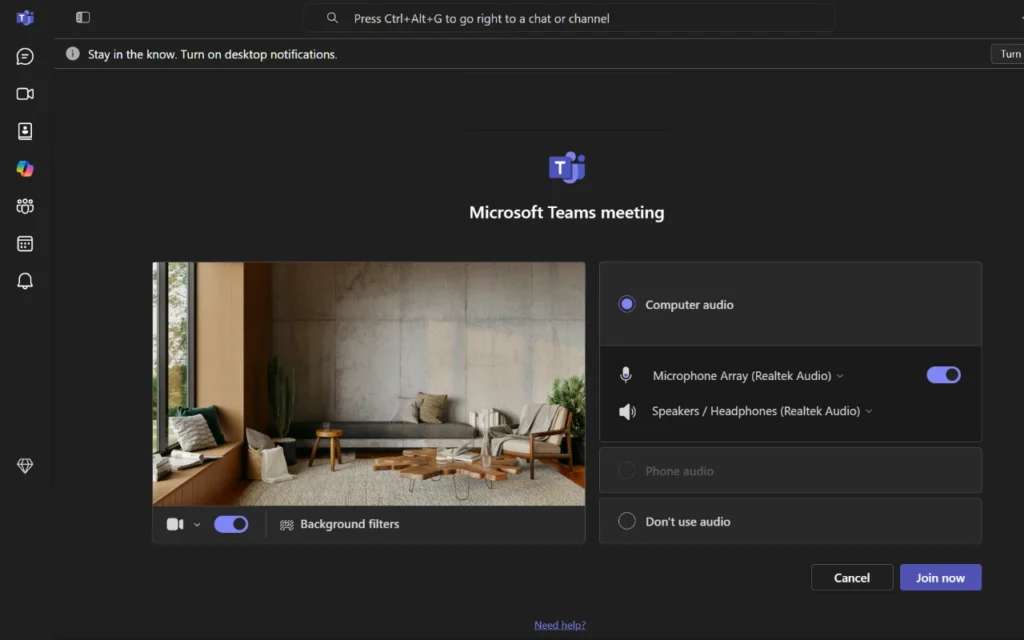
Microsoft Teams isn’t really a video calling tool with extra features bolted on, it’s the reverse. It’s a full workspace, chat, file sharing, document collaboration, with meetings as one piece of a bigger system.
I tested Teams on July 9, 2026, running a live training session with 88 people on teams.live.com. One standout feature: live PowerPoint updates. Edit your slides mid-meeting and the changes show up on screen right away. One thing to watch for: the virtual background wasn’t perfect in testing, it sometimes cut into a hand or shoulder, and the lighting came through brighter than expected.
Best for
Teams makes the most sense for businesses already paying for Microsoft 365, and for remote teams that want chat, files, and meetings in one workspace rather than switching between apps all day.
Why it made this list
Teams solves a different problem than Zoom, Google Meet, or Whereby. Those tools are built for the meeting itself. Teams is built for everything around it, the chat thread before, the shared file during, the follow-up conversation after, all in one place.
Key features
Video meetings and screen sharing cover the basics. Where Teams pulls ahead is Office collaboration, you can pull up a Word document or Excel sheet during a call and edit it together in real time. Calendar integration works the same way it does in Outlook.
Free plan details
- Up to 100 participants per meeting
- 60-minute meeting time limit
- No credit card required
- No meeting recording on the free tier, see Microsoft’s Teams free plan page, recording is a Microsoft 365 subscription feature
- Full feature set requires a Microsoft 365 subscription
Hidden limitations
The free plan is a funnel toward Microsoft 365, not a complete standalone product. Beyond the missing recording, bigger file storage and deeper admin controls are locked behind a paid subscription. New users unfamiliar with Microsoft’s ecosystem can find the interface heavy at first. The real learning curve isn’t the video call, it’s navigating everything Teams bundles around it.
Ease of use
Familiar almost immediately if you already use Microsoft’s other tools, since the layout borrows heavily from Outlook. Guests from outside your organization can still join without an account, though it takes a bit more effort than a Whereby or Meet link.
Security and privacy
Meeting locks, participant controls, and encryption in transit are all available even on the free tier.
- File sharing and real-time Office document collaboration built in
- Familiar interface for anyone already using Outlook or Office
- No credit card required
- Chat, files, and meetings live in one workspace
- No recording on the free tier
- Full functionality requires a Microsoft 365 subscription
- Can feel cluttered or heavy for new users
- Slower and more resource-intensive than Zoom or Google Meet on older laptops
Microsoft Teams is the right call if your business already runs on Microsoft 365. If you’re not already in that ecosystem, both Zoom and Google Meet feel lighter and faster for the video call itself.
7. Cisco Webex, the best pick for secure business meetings
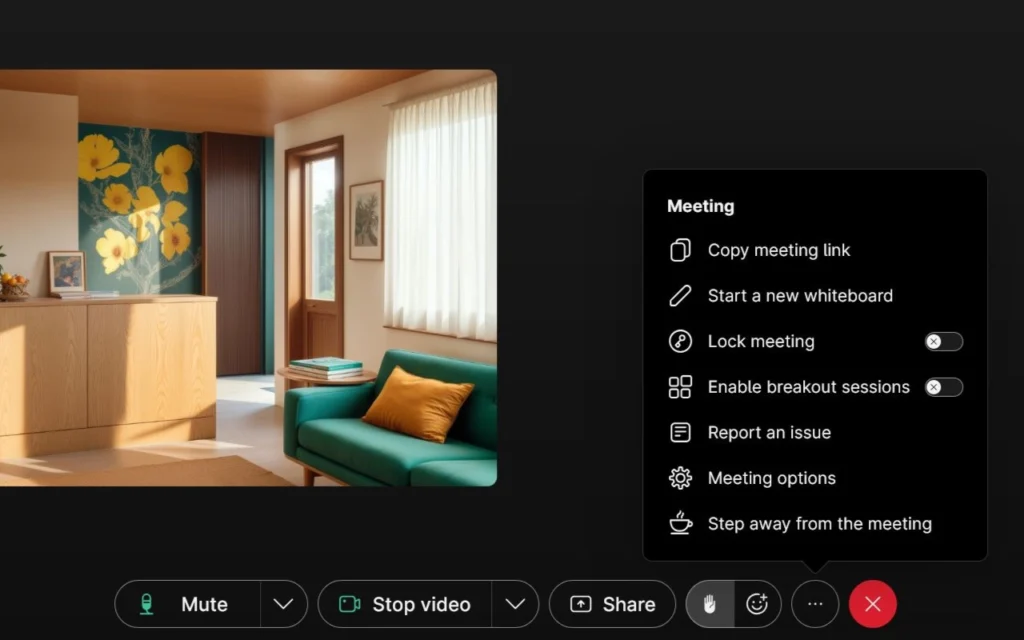
Cisco Webex brings decades of enterprise networking experience to free video conferencing. You can sign up with Google, Apple, Microsoft, or email, and every meeting gets a personal room with a fixed link.
During testing, Webex actually blocked me from joining once, flagging a network issue and suggesting I switch networks, drop the VPN, or try another browser. The video preview also looked dark, similar to what I saw with Jitsi.
Best for
Webex fits small businesses that deal with confidential information, and any team where security posture matters more than having the simplest possible interface.
Why it made this list
Cisco’s reputation in enterprise networking and security carries real weight for a business that needs to tell clients or partners “we take this seriously” and back it up. That’s hard for newer competitors to match.
Key features
HD video and screen sharing with annotation cover the basics. Webex includes unlimited whiteboards, and local recording is included free, a genuine advantage over some of the other tools here.
Free plan details
- Up to 100 participants per meeting
- 40-minute limit per meeting
- No credit card required
- Local recording included free, see Webex’s pricing page for the full plan comparison
- Unlimited whiteboards included
Hidden limitations
The interface leans more toward business and enterprise design than the simpler layouts of Google Meet or Whereby, so new users may need more time to find their way around. Several advanced collaboration features are locked behind paid plans.
Ease of use
Straightforward to set up and join, but the interface feels built for IT-managed environments rather than the stripped-down simplicity of Google Meet.
Security and privacy
This is where Webex stands apart. Host controls, meeting locks, and encrypted connections are all part of the free experience, backed by Cisco’s core security business.
- Backed by Cisco’s enterprise security reputation
- Unlimited whiteboards and screen sharing with annotation included free
- No credit card required
- Local recording included free, unlike some competitors
- 40-minute meeting cap
- Interface feels more complex than Google Meet or Whereby
- Several collaboration features locked behind paid plans
Cisco Webex makes sense if security and enterprise credibility matter more to you than the simplest possible interface. If ease of use and free recording matter more than Cisco’s pedigree, Zoom or Zoho Meeting are worth a look instead.
Best free video conferencing software by use case

Freelancers and client calls
If most of your calls are short and client-facing, Whereby is worth starting with. Your client clicks a link, no app, no account needed. Just budget for two caps, not one: 4 participants and 30 minutes per meeting (that unlimited-duration allowance disappeared from the Free plan in January 2025). If calls run long or a client brings teammates, keep Zoom as your backup.
Small businesses on a budget
Zoho Meeting, free forever, a full hour per meeting, room for 100 participants. Smaller feature set and less brand recognition than Zoom, but if you already run on other Zoho tools, the convenience adds up fast.
Remote teams running regular meetings
Google Meet or Zoom, depending on what you already use. On Google Workspace, Meet saves a step since links attach automatically to Calendar invites. Otherwise, Zoom’s reliability on shaky connections makes it the safer default. Meet skips recording on the free tier, Zoom cuts group calls at 40 minutes.
Unlimited meeting length
Jitsi Meet, no time limit, no account needed. Call quality can dip in larger meetings since it runs on shared public infrastructure, and there’s no dedicated support team if something goes wrong.
Already using Google Workspace or Microsoft 365
Don’t add a new tool on top of one you’re already paying for. Meet if you’re on Gmail and Calendar, Teams if you’re on Outlook and Office.
Meetings involving sensitive information
Cisco Webex, despite the steeper learning curve. Cisco’s enterprise security background is hard for newer tools to match. If compliance is a bigger piece of your decision than video calling alone, it’s worth reading our guide on [choosing secure business software] alongside this one.
Signs you’ve outgrown the free plan (and what’s locked behind paid tiers)
Free video conferencing works fine for a long time. For a lot of people, it works forever. But some businesses eventually hit limits that start slowing them down.
The most common trigger is hitting your time limit over and over. If a cap means restarting a call every single meeting, that’s time and focus lost every week. Outgrowing your participant limit is another clear sign. If you’re regularly turning people away from a call because you’ve hit a cap, it’s telling you something.
Some features stay locked behind paid plans no matter which tool you’re on: cloud recording, meeting transcripts, admin controls for multiple team members, your own branding instead of the software’s logo, more storage for recordings, webinar tools for bigger audiences, deeper CRM or project-tool integrations, and stronger compliance certifications.
None of this means you need to upgrade right away. The right moment is when the free plan is costing you time, professionalism, or missed opportunities, not just when a paid plan starts to look appealing. If you’re also reassessing other tools at the same time, our [guide to evaluating SaaS free trials versus free plans] covers the same decision from a wider angle.
Signs you’re ready to upgrade
- Your meetings hit the time limit and get cut off
- You’ve outgrown your plan’s participant cap
- You need cloud recording instead of local-only saves
- You want meeting transcripts for follow-up or accessibility
- You’re managing multiple team members and need admin controls
- Client-facing meetings would benefit from your own branding
- You’re running out of storage for recordings
- You need webinar or large-event features
- You need deeper integrations with your CRM or other business tools
- Compliance requirements have grown beyond what the free plan offers
How to avoid getting caught off guard by these limits
- Estimate your average meeting length, not your ideal one
- Count how many people join, including occasional bigger calls
- Decide upfront whether recording matters for your work
- Confirm integration support if your workflow depends on a CRM or project tool
- Check the provider’s official pricing page before signing up. Free plans change (Whereby’s own free tier picked up a 30-minute cap in January 2025, exactly the kind of change worth checking for before you commit)
- Test the free plan for a meeting before building your whole workflow around it
- Revisit your choice every so often, since free plans keep changing
Common mistakes to avoid when choosing free video conferencing software
Assuming “free” means unlimited
Some plans are trials in disguise, some have limits attached, some have no catch. Knowing which one you’re signing up for saves you from an unpleasant surprise later.
Choosing based only on popularity
Zoom being the most recognized name among free video meeting apps doesn’t automatically make it the right fit. If most of your work is one-on-one client calls, Whereby’s zero-friction guest experience might serve you better even though fewer people have heard of it.
Forgetting about future growth
A tool that fits your team of three today might not fit your team of ten in six months. Think a few steps ahead, not just about this week.
Ignoring privacy and security
If your calls involve client data or anything confidential, check whether a tool offers meeting locks, passwords, and encryption before you use it for sensitive conversations.
Not checking integrations
If your business runs on Google Workspace, Microsoft 365, or a CRM, check whether your video tool connects to it before signing up.
Overlooking the guest experience
If a client struggles to download an app or create an account just to join a call with you that friction reflects on you, not just the software.
Skipping the official pricing page
A tool’s free plan can change, as this guide’s own Whereby entry did, so check the provider’s current page directly before you commit rather than relying on any single article, including this one.
Frequently asked questions
1. What is the best free video conferencing software for small teams?
Zoom is the strongest overall pick for most small teams: up to 100 participants, reliable even on average wifi, no credit card required. The main tradeoff is the 40-minute cap on group meetings. If your team runs longer, Google Meet or Jitsi Meet are worth considering instead.
2. Which free video conferencing platform has no meeting time limit?
Jitsi Meet is the clearest answer, no time cap, no account, no credit card at any point. The tradeoff is call quality, since it often runs on shared public infrastructure and can dip in larger meetings. Worth noting: Whereby isn’t a good answer to this question anymore, its free plan added a 30-minute cap in January 2025.
3. Do free video conferencing apps require a credit card?
It depends on the tool. A free plan doesn’t ask for card details at all. A free trial almost always does, because it’s built to start billing you automatically once the trial ends. If a signup page asks for payment info before you’ve even joined a call, that’s your signal you’re looking at a trial, not a free plan.
4. Can I record meetings with free video conferencing software?
It varies a lot. Zoom offers local recording on its free plan. Zoho Meeting includes recording too, worth confirming current storage limits on Zoho’s own pricing page. Google Meet, Microsoft Teams, and Whereby don’t include recording on their free tiers, and for Google Meet and Microsoft Teams it’s strictly a paid-subscription feature. Cisco Webex includes local recording free, a detail easy to miss since it’s not heavily advertised. Jitsi Meet only supports recording through a separate self-hosted setup, so it isn’t available out of the box.
5. Which platform is the best free video calling app for clients to join?
Whereby, no download, no account, no login screen. Google Meet comes close for the same reason. Whereby’s are 4-participant cap and its 30-minute meeting limit, both fine for a quick one-on-one client call, but tight for anything longer or larger.
6. Is Zoom still the best free video conferencing software?
For most general use, yes, its reliability and familiarity make it the safest default, especially for calls involving people outside your company. But if you need unlimited meeting time, Jitsi Meet fits better, and for short, recurring client calls, Whereby’s guest experience wins on that specific job.
7. Which free video conferencing software is best for Google Workspace users?
Google Meet, meeting links attach automatically to calendar invites, and it’s entirely browser-based. The main gap is recording, which requires a paid Workspace edition.
8. Which platform works best with Microsoft 365?
Microsoft Teams, chat, file sharing, and Office document collaboration alongside the meeting itself. Just remember its free tier doesn’t include recording, that’s also a paid-subscription feature.
9. Are free video conferencing platforms secure?
Generally, yes, for everyday business use. Most include meeting passwords, host controls, and encrypted connections on their free plans. More advanced security and compliance features are reserved for paid tiers. If your meetings involve sensitive data, check each provider’s official security documentation directly.
10. How do I choose the right free video conferencing software?
Start with three questions: how long do your meetings run, how many people join, and are you on Google Workspace or Microsoft 365. Whatever free online meeting software you land on, check whether you need recording, confirm the tool doesn’t require a credit card, and check the official pricing page to make sure nothing’s changed since this guide was written.
Final verdict
There isn’t one perfect platform here. The right choice depends on how you work, not on which name you’ve heard the most.
Start with whichever tool matches your situation, Zoom for general reliability, Jitsi Meet for unlimited meeting length, Whereby for short client calls, Google Meet or Teams if you’re inside that ecosystem, and test it with a real meeting. Pay attention to how it handles your meeting length and participant count. Only upgrade once the free plan gets in your way, not before.
If you want a single starting point, Zoom gets the overall nod here: reliable on average connections, familiar enough that guests rarely need help joining, and no credit card required. The 40-minute cap is real, but for most calls it’s not the deal breaker it sounds like.
One last thing before you commit to any of these: open the provider’s current pricing page yourself and check the limits above still hold. Whereby’s free plan already changed once, and it won’t be the last one on this list to do so. If you’re comparing this against other collaboration software for your team, our remote team tools comparison guide rounds out the picture beyond video calls alone.