
Remote teams lose time in video calls for a few reasons: weak connections, confusing join steps, hidden add-ons, and poor follow-up after meetings. This guide breaks down the best video conferencing software for remote teams, comparing six tools based on the problems they face, setup friction, call stability, pricing transparency, and post-meeting workflow.
We reviewed pricing pages, signed in and ran real meetings on all six tools, Zoom, Microsoft Teams, Google Meet, Whereby, Zoho Meeting, and Jitsi Meet, and compared what we saw against user feedback elsewhere. Each tool's section below includes the exact date we tested it and what we found, good and bad. Which one does well for you often comes down to what your team needs it for, so we've broken out what each tool handles well and where it creates friction.
Why You Can Trust This Guide
I've been a freelancer for three years, and in that time I've written more than 250 articles about tools I've run into problems with, and how I fixed them. I use over 300 tools across client work, everything from time trackers like Toggl and Harvest to client management software. Video conferencing is one of the categories I deal with constantly, since almost every client has their own preference. This guide comes from that experience, not a generic feature comparison, so you don't have to burn the hours I have finding out what works.
You can read how we test tools on our review methodology page, and how affiliate links affect (or don't affect) our recommendations on our affiliate disclosure page.
What This Guide Does Differently

Many comparison articles repeat the same recommendations without explaining the trade-offs that matter in use. This guide focuses on join friction, connection stability, hidden costs, and meeting follow-up features, because those are the issues remote teams deal with most often.
Where possible, we point out what a tool is best for, what it does not handle well, and what may cost extra.
The Problems Remote Teams Run Into
Now let's talk about what's broken before we get into the list of video conferencing tools. Sometimes, it's not the tool. It's the way teams are using it.
Too Many Meetings, Not Enough Time
Remote workers attend 25.6 meetings per week, while people who work in an office average 14.2. That’s almost double. That makes it important that every call is worth the time. When meetings are too frequent or poorly run, the main cost is not just the call itself but the time lost before and after it.
A good video conferencing software should make joining easy, reduce friction, and support clearer follow-up when a meeting ends.
Why a call can fail even when the internet looks fine
A call can still freeze, lag, or drop audio even when your internet appears to be working. Some apps handle weak connections better than others, and device load also matters when too many tabs or background apps are open.
If call quality is poor, close unused tabs, restart the device, and test whether the problem happens on more than one network. If the issue continues, the platform itself may be part of the problem.
The hidden cost problem
A listed monthly price for web conferencing software doesn't always reflect the real cost of using the platform. Some tools charge extra for phone dial-in, recording, webinar features, storage, or AI features that are not included in the base plan.
In the tool sections below, we note the extra costs so you can compare the full price.
What Happens After the Meeting
A meeting is only useful if the team remembers what was agreed and follows through. If action items are not captured, work slows down and people end up meeting again to confirm the same details.
Tools with summaries, notes, or follow-up support can reduce that problem. That matters if your team needs more than just a live call. Pairing that with the right client management software or project tracking tool helps make sure nothing discussed in the meeting gets lost.
If Your Team Has People in the UK or EU
If your team handles data from people in the UK or EU, privacy and data-handling settings matter. Some platforms let you choose data storage or compliance settings, but those options may not be enabled by default.
Before choosing a tool, confirm how it handles data storage, retention, and compliance controls for your use case. If privacy matters a lot to your business, check the platform’s official documentation before rollout. We break down the most secure and GDPR options in our most secure video conferencing software guide.
The Best Video Conferencing Software for Remote Teams in 2026
Whether you think of them as video conferencing tools, online meeting software, or video communication platforms, the best pick depends on what your team struggles with most. Use the guidance below to match the platform to the problem you want to solve.
1. Zoom: Best for Client Calls and External Meetings
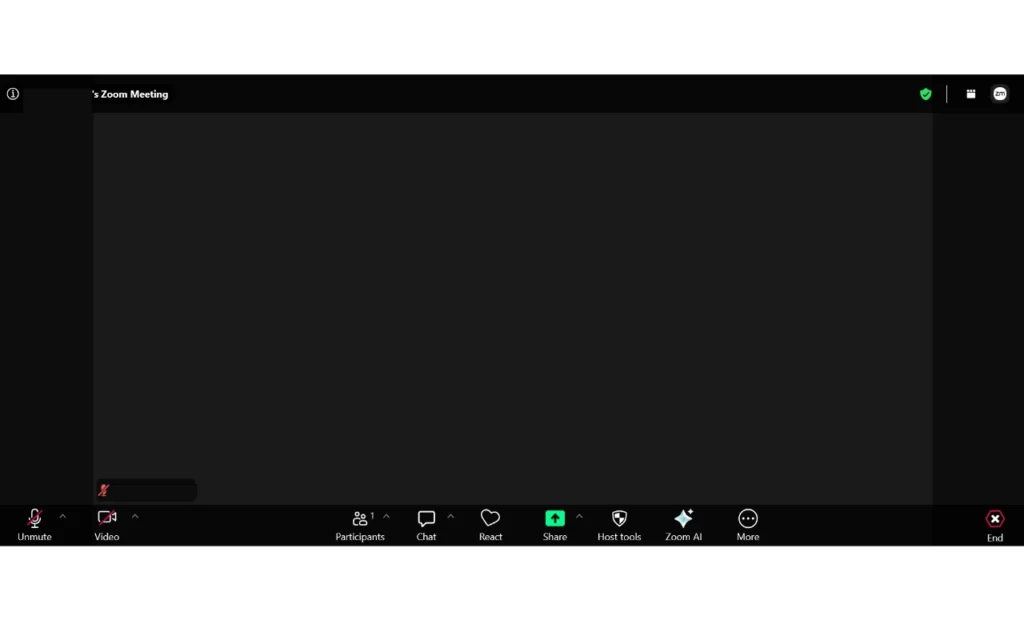
Joining a Zoom call is about as simple as it gets. Search “Zoom,” land on zoom.us, and you can join either through the Zoom Workplace app or straight from your browser, no install required if you don't want one. Click join from the browser, and the only real interruption is a quick prompt asking for camera permission.
We tested Zoom on June 2, 2026, the first of the six tools we tried. One thing that stood out with Zoom specifically: it stays simple even if you've never used it before. The plain white interface with a blue accent keeps it feeling professional rather than cluttered.
It's a strong fit for client calls, sales demos, and meetings with people outside your company, since guests rarely need anything explained to them before joining. If your team runs large webinars or big group calls, see our picks for the best video conferencing platforms for large groups and webinars
What to watch out for: the base price may not reflect the full cost if you need extras such as phone service, webinars, or storage.
Free plan limits group calls to 40 minutes. Paid plans start at approximately $14.99 per host per month before add-ons and taxes, see Zoom's official pricing page for current numbers.
2. Microsoft Teams: Best for Teams Using Microsoft 365
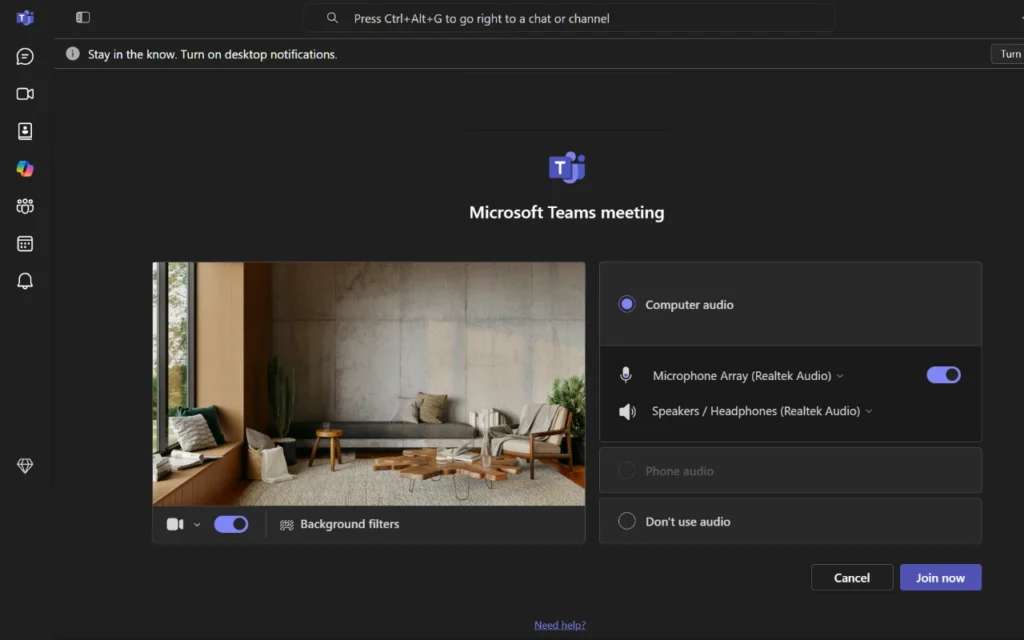
We tested Microsoft Teams on July 9, 2026. We ran a live training with 88 people using teams.live.com. When you sign in, you land on a dashboard with chat, video, people, Copilot, and calendar. Click video to set a title and get your meeting link. Then you're ready to start.
What works well: The meeting screen is easy to use. Chat, raise hand, and react are all right there. When someone raises their hand, a yellow icon pops up, so questions don't cut into the flow. The people panel shows attendance in real time, which came in handy with a group our size. Our favorite feature was live PowerPoint updates. Edit your slides during the meeting, and the changes show up on screen right away. No need to re-share anything.
What to watch out for: The virtual background wasn't perfect in our test. It sometimes cut into a hand or shoulder, and the lighting looked brighter than it should. Test your own setup before you use it for a client call. Teams can also feel slow on older laptops. Some advanced features need a higher-tier Microsoft plan too.
Price: Basic plans start around $4 per user a month. But most businesses will need a full Microsoft 365 bundle to get everything they need.
3. Google Meet: Best for Weak Connections and Google Workspace Users
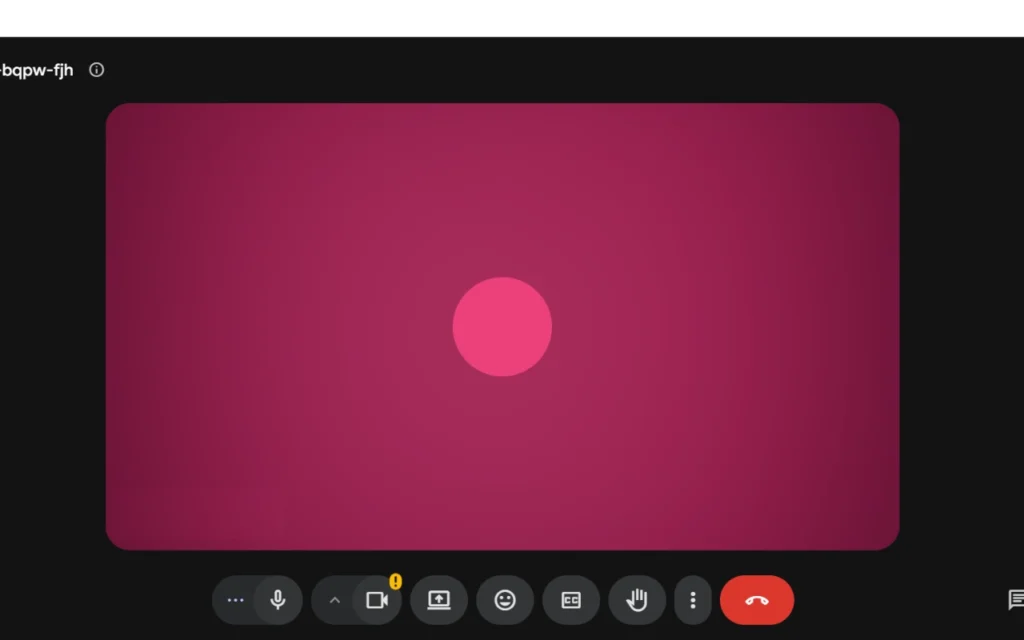
We tested Google Meet on July 11, 2026, at 10:59 AM. If you already have a Gmail account, signing in couldn't be easier, no extra sign-up step required. The dashboard splits into two tabs, Meetings and Calls, under the tagline “Connect, collaborate, and celebrate from anywhere with Google Meet.” Hit New Meeting, and you're off.
Here's what we liked: the More menu hands you real control mid-call. Adjust your view, go full screen, switch to picture-in-picture, or swap your background, it's all right there. And if something breaks, the same menu lets you report the problem, report abuse, or get help without hunting around for it.
Need to share your screen? The button sits right at the bottom, easy to find the moment you're ready to pull up a PowerPoint. Reactions work well too, click like or love, and the icon floats up the left side of the screen with your name attached, so everyone knows who reacted without a word being said. If you'd rather type than talk, in-call messages let you do that too.
One small thing worth knowing: when you leave the call, Meet confirms it. Simple, but it means you're never left wondering whether you actually made it out.
Free meetings cap out at 60 minutes. Need more time? Paid plans through Google Workspace start around $6 per user a month.
4. Whereby: Best for Freelancers and Client-Facing Calls
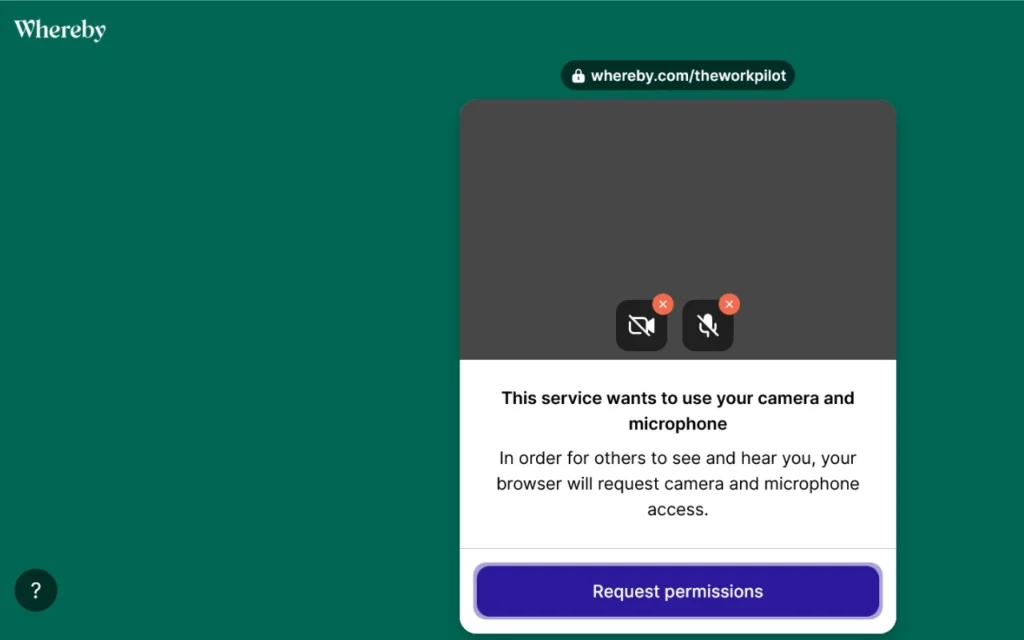
We tested Whereby on July 18, 2026. It's built for quick, low-friction calls, the kind freelancers run with clients who don't want to install anything or create an account. Signing in is easy, you can go through Google or sign in directly. We tested the Free plan, which allows up to 4 participants per meeting and caps meetings at 30 minutes, plenty for a one-on-one client call, tight if you need a bigger group.
Setting up a room takes seconds. Name your room (we used “theworkpilot”), then either finish or skip further customization. Whereby asks for camera and microphone permissions before you join, a quick one-click “Request permissions” step.
Once you're in, there's a nice touch for testing: a “Let's test the call” prompt gives you a QR code to join from your phone, or a link you can copy and send to invite someone else. During our test, reactions worked well, a thumbs-up appeared right over the video feed, and the same reaction showed up in chat with a live count. Sending a message (“Thank you for joining this meeting”) was simple and appeared instantly with a timestamp.
When you leave, Whereby shows a clean “You've left the room” screen with a prompt to upgrade, Pro at $10.99 a month for one host, or Business at $13.99 a month per host for teams of three or more.
Price: Free for up to 4 participants and 30-minute meetings. Pro starts at $10.99 per host a month, Business at $13.99 per host a month for larger teams. For more tools built for freelancers and small teams, check out our best video conferencing software for small business guide.
5. Zoho Meeting: Best Budget Option for Small Teams
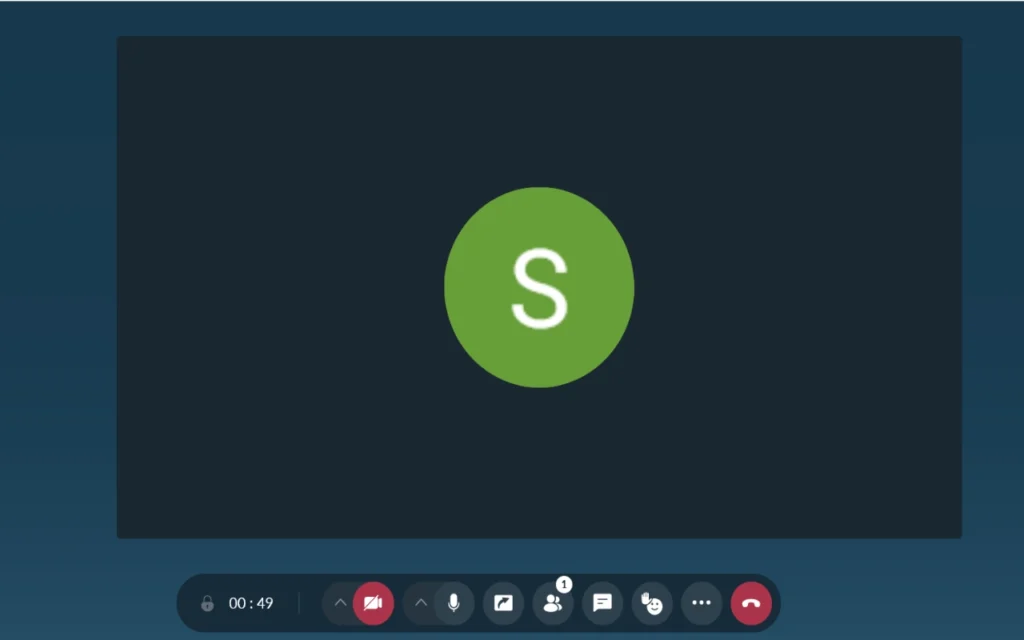
We tested Zoho Meeting on July 20, 2026. Signing in gives you options: Google, Facebook, LinkedIn, X, your Zoho password, or a one-time code sent to your email. We signed in with Google, and it went smoothly. Inside, the layout is split into Home, Meetings, Webinars, Calls, Calendar, and Files, with Analytics, Users, and Settings tucked under a three-dot menu. Click Meet Now, confirm your camera and mic, and you're in.
What works well: The in-call toolbar is clean and easy to navigate, camera, mic, screen share, participants, chat, reactions, and a dedicated Raise Hand button, all one click away. Reactions worked well in our test, a thumbs-up floated up the corner of the screen right after we clicked it.
Inviting people is simple too: copy the meeting link, copy a full invitation, or send an invite by email straight from the call. The More menu tucks in useful extras: meeting notes, lock meeting, start recording, breakout rooms, and polls. When we ended the call, Zoho asked us to confirm first, then showed a clean summary screen with host name, session length, participant count, and a quick star rating for the call.
What to watch out for: it has fewer advanced features than larger competitors and a smaller user community for support.
Price: Paid plans run roughly from $1 to $3 per host per month. Check out our full best video conferencing software for small business guide.
6. Jitsi Meet: Best Free and Privacy-First Option
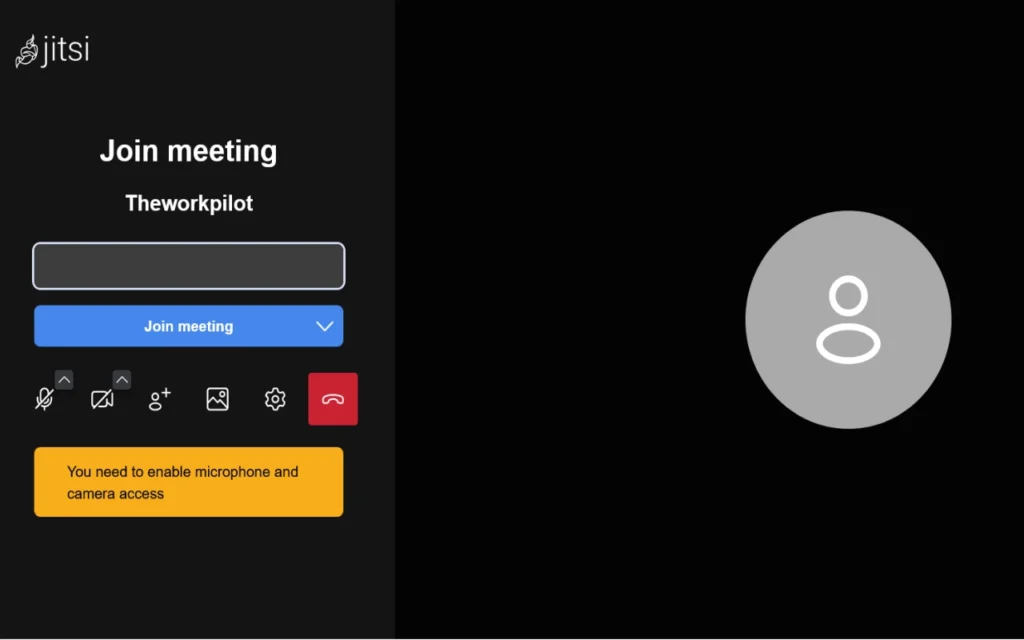
We tested Jitsi Meet on July 24, 2026. Getting into a meeting is fast. Just type a name for your room (we used “theworkpilot”), click Join Meeting, and you're in right away. You don't need an account, though you can sign in with Google or GitHub if you want the same identity every time you meet. Jitsi will ask for camera and mic access first, just a quick prompt to say yes to both.
Here's what we liked: the toolbar has everything you'd expect, mic, camera, screen share, chat, raise hand, and a list of who's in the call. There are a few extras tucked into the menu too, like live streaming, a shared whiteboard, extra noise suppression, and background options. The invite panel stood out for a free tool. It gives you a link to share, plus a real phone number and PIN for anyone who wants to dial in. When someone raises their hand, you'll see it right at the top of the screen with a live count, so it's easy to notice.
Now, what to watch out for: our video came through dark and grainy, even with normal lighting. It also feels a bit rougher around the edges than paid tools, and things may slow down more on a weak connection.
Price: Free.
Want more free options? Check out our best free video conferencing software guide. If privacy matters more to you, take a look at our best open source video conferencing software breakdown instead.
Quick Comparison Table
Pricing verified as of July, 2026.
| Tool | Best For | Starting Price | Free Plan Limits |
| Zoom | Client calls and external meetings | About $14.99/host/month | 40-minute group calls |
| Microsoft Teams | Teams already using Microsoft 365 | About $4/user/month | 60 minutes, 100 participants |
| Google Meet | Weak connections and Google Workspace users | About $6/user/month | 60-minute group calls |
| Whereby | Freelancers and client calls | $10.99/host/month | Up to 4 participants |
| Zoho Meeting | Budget-conscious small teams | About $1-$3/host/month | No free plan, low-cost paid tiers only |
| Jitsi Meet | Free and privacy-first teams | Free | No time limit, no hard participant cap. |
How to Pick the Right One for Your Team
If you call clients
Choose Zoom if you want something most clients already recognize. Choose Whereby if you want the easiest possible join experience with less setup friction.
If your team already uses Microsoft or Google tools
If your team pays for Microsoft 365, Teams is the simplest choice. If your team uses Google Workspace, Meet is the better fit.
Adding a separate video tool only makes sense if your current platform does not meet your meeting or client-access needs.
If your internet is unreliable
Start with Google Meet. It is a safer first choice when connection quality is inconsistent because it is lightweight and easy to join without extra software.
If you're on a tight budget
Choose Zoho Meeting if you want a low-cost paid option. Choose Jitsi Meet if you need a free option and can accept a less polished experience.
If privacy or data controls matter to your business
Start with Whereby or Jitsi. Both are easier to evaluate if privacy is a major concern, but you should still confirm the official data-handling settings before deployment.
FAQ for the Best Video Conferencing Software for Remote Teams
What is the best online meeting software for small teams?
It depends on budget and what your team already uses. Zoho Meeting is the lowest-cost paid option here, while Teams or Meet make the most sense if you already pay for Microsoft 365 or Google Workspace.
What's the best free video conferencing app?
Jitsi Meet is the strongest free option if you want no time limit and no account requirement. Google Meet is simpler for many users, but its free group calls have a 60-minute cap.
Are video conferencing tools safe to use for client calls?
Yes, but only if you choose a platform that fits your privacy and data-handling needs. For client work, review the official documentation for storage, retention, and compliance settings before rollout.
What is the best video conferencing software for remote teams on a budget?
Zoho Meeting is the best budget paid option in this list. Jitsi Meet is the best no-cost option.
Do I need to worry about GDPR if my team is only in the US?
GDPR is most important when you handle data from people in the UK or EU. If your business is US-only, it may be less central, but privacy settings and data storage still matter.
Before You Pick
Even among the top video conferencing platforms we tested, there's no single best fit for every remote team. The right choice depends on whether your bigger problem is client friction, weak internet, hidden costs, or privacy requirements.
If you want the simplest all-around option, Zoom is the safest familiar pick. If you want the easiest browser-based client experience, choose Whereby. If your main concern is cost, look at Zoho Meeting or Jitsi. If your team pays for Microsoft 365 or Google Workspace, use Teams or Meet unless you have a clear reason to add another platform.