This guide may contain affiliate links. See our review methodology and affiliate disclosure pages for details.
Quick Answer on the best video conferencing software for small businesses
Zoom is the best video conferencing software for small businesses. It's reliable, it's easy for clients to join, and its paid plans throw in AI meeting notes at no extra cost, something most competitors charge extra for.
That said, the right pick comes down to how your business works. Running on Gmail and Google Docs every day? Go with Google Meet. Living in Outlook and Microsoft 365? Teams will feel like home. Spending most of your week on client calls? Whereby is worth a look, you send one link, and the other person joins straight from their browser, nothing to install.
We spent time comparing eight popular platforms: checking pricing, features, and security, reading user reviews, and using each tool ourselves before making these picks. We didn't just count features off a spec sheet. We looked at how each platform holds up in a business situation, a client call, a team standup, a training session.
Quick breakdown:
- Best overall: Zoom
- Best if you work with clients: Whereby
- Best for Google Workspace users: Google Meet
- Best for Microsoft 365 users: Microsoft Teams
- Best low-cost option: Zoho Meeting
Introduction
Every recommendation below comes with a trade-off attached, and what a plan leaves out matters just as much as what it includes. That's the part most comparison guides skip. It's the one we tried hardest to close here.

Comparison Table
Software | Best For | Free Plan | Starting Price | Ease of Use | Our Rating |
|---|---|---|---|---|---|
Zoom | Overall reliability | 40 min, 100 people | $14.16/user/mo | Very easy | Excellent |
Google Meet | Google Workspace users | 60 min, 100 people | $7/user/mo | Very easy | Excellent |
Microsoft Teams | Microsoft 365 users | 60 min, 100 people | $4/user/mo | Moderate | Good |
Whereby | Freelancers & client calls | 4 people, 30 min | $10.99/mo | Very easy | Very good |
Zoho Meeting | Tight budgets | 100 people, 60 min | $1/host/mo | Easy | Good |
Cisco Webex | Compliance-sensitive teams | 40 min, 100 people | $12/user/mo | Moderate | Good |
Jitsi Meet | Truly free, no limits | Unlimited (self-hosted) | Free | Moderate | Good |
Slack Huddles | Teams using Slack | 1:1 only, 30-min limit | $8.75/user/mo | Very easy | Good |
A quick note on “Our Rating”: it's a blend of reliability, ease of use, and value for the price, weighted toward what matters for a small business, not the platform with the longest feature list.
How We Chose the Best Video Conferencing Software for Small Businesses and Freelance Teams
There's no shortage of guides on this topic, and a lot of them read like they were written by someone who never opened the app. We wanted to do something different.
For this guide, we signed up and run meetings on all eight platforms between June 2 and August 1, 2026: Zoom on June 2, Microsoft Teams on July 9, Google Meet on July 11, Whereby on July 18, Zoho Meeting on July 20, Jitsi Meet on July 24, Cisco Webex on July 26, and Slack Huddles on August 1.
We didn't include a tool just because it's popular. Plenty of well-known tools have limitations you should know about before you commit to one. We focused on what matters most when you're running a small business: the cost, what you get for free, how much setup it takes, and whether the call holds up on an internet connection.
What We Assessed
- Value for money and overall price
- Free plan limits on time, participants, and recording
- How easy it is to install and operate
- Quality and reliability of meetings
- Security, privacy, and compliance features
- Integrations with common business tools
- Room to grow as your team expands
- Ratings from users
- Current pricing, checked against each provider's own site
Every platform here comes with its own trade-offs. Keep that in mind as we go through them, starting with Zoom.
1. Zoom — Best Overall for Most Small Businesses
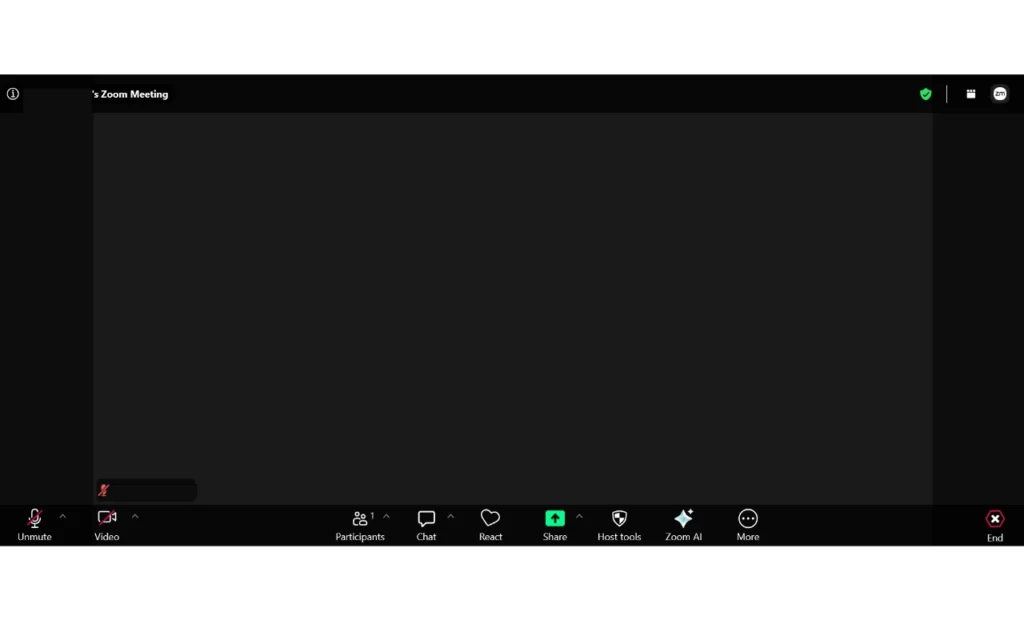
“Video call” used to just mean “Zoom call” for a lot of people, and it's still the platform most of us reach for first. We tested it on June 2, 2026, and the plain white interface with its blue accent still felt professional rather than cluttered, even walking in cold. Calls held up well, and getting set up took almost no effort.
Best For
Zoom works well for small businesses that want one app for both internal meetings and client calls. It handles a mix of clients, vendors, and colleagues without much fuss. If your business runs one-on-one calls, or you're a freelancer who wants a permanent branded link, a more specialized tool might suit you better.
Why It Made Our List
Simple: it just works. Even people who complain about a shaky internet connection tend to say Zoom handles it fine. It's also easy enough that you won't spend your first meeting explaining how to join it.
Standout Features
The AI Companion comes free on all paid plans, and it's a win. It summarizes meetings and takes notes for you, so you're not stuck trying to remember what a client agreed to after the call ends. Breakout rooms are another practical touch, handy if you ever run a small-group coaching session or team workshop.
Pricing
The free version caps meetings at 100 participants and 40 minutes, which is plenty if your group stays under 100 people. Some businesses find the time limit too tight, especially for client calls that run long. The Pro plan runs $14.16 a month billed annually and includes 30-hour meetings plus unlimited AI note-taking. See Zoom's official pricing page for current numbers before you commit.
- Reliable call quality, even on average wifi
- AI meeting notes included
- Easy for clients and non-technical people to join
- Works well for both one-on-one calls and larger meetings
- Free plan is limited to 40 minutes
- Webinars cost extra
- Gets pricey once you add storage or extra features
Hidden Limitations
The Pro and Business plans include 10GB of cloud storage per user. Once you hit that limit, recording stops until you free up space or buy more. If you're planning to host webinars, budget for that separately, it isn't included.
For most small businesses, Zoom is the safe, reliable pick, especially if client meetings are part of your week. Freelancers who only need a single, permanent branded link tend to be happier with something built specifically for that job, more on that below.
2. Google Meet — Best for Businesses Using Google Workspace
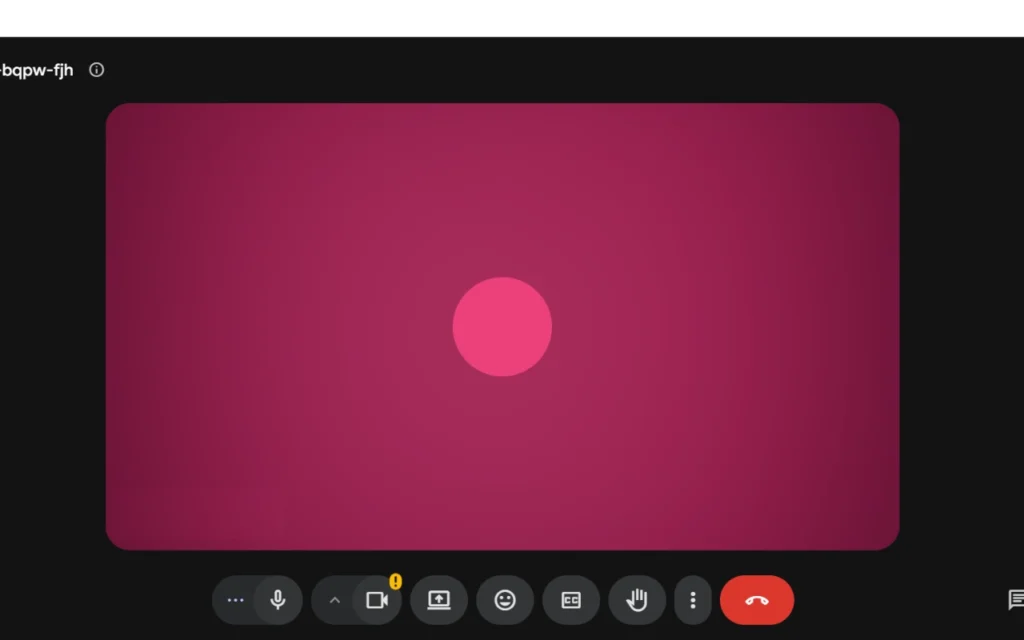
If you're living in Gmail, Google Docs, and Google Calendar, Google Meet is one of the easiest online meeting tools to justify. We tested it on July 11, 2026: signing in was instant since we had a Gmail account, and hitting New Meeting dropped us straight into a call. If you're on Google Workspace, this one's sitting there waiting for you.
Category | Details |
|---|---|
Best For | Businesses on Google Workspace |
Free Plan | 100 participants, 60-minute limit |
Starting Price | $7/user/month (Business Starter) |
Participant Limit | 100–1,000, depending on plan |
Meeting Time Limit | 60 min (free), 24 hours (paid) |
Mobile Apps | iOS and Android |
Browser Support | Fully browser-based, no download |
Best For
Meet is built for businesses paying for Google Workspace. If your team schedules through Google Calendar and shares files in Drive, it fits right in without any extra setup.
Why It Made Our List
It's fully browser-based, tightly woven into Google Workspace, and generous with its 60-minute free limit. Nobody has to download anything, just click a link from a calendar invite and you're in. For a small business owner who'd rather not walk every new client through installing an app, that's useful?
Features
Real-time captions are one of the useful features here, especially on client calls where someone might be dialing in from a noisy spot. Gemini AI integration on paid plans can also summarize meetings and translate captions on the fly, handy if you're juggling calls across time zones or with clients who speak different languages.
Pricing
The free plan covers 100 participants and 60-minute meetings, but recording isn't included at all, not even a basic version. Business Starter, at $7 per user per month, still skips recording. You'll need Business Standard, at $14 per user per month, before that's included. Check Google Workspace's pricing page for the latest tiers.
- No download needed for anyone to join
- Bundled with Gmail, Docs, and Calendar if you're on Workspace
- Clean, simple interface with almost no learning curve
- No recording on the free plan or Business Starter
- Fewer advanced meeting features than Zoom
- Less useful if you're not using Google Workspace
Hidden Limitations
The participant cap follows the host's plan, not the guest's. Host on Business Starter, and everyone's capped at 100 people, no matter what plan your attendees are on. Worth knowing before you invite a big group.
If Google Workspace is part of your day, Meet is the easy, low-friction call, cheaper than bolting on a separate tool. Outside that ecosystem, something built around video calls will serve you better.
3. Microsoft Teams — Best for Businesses Using Microsoft 365
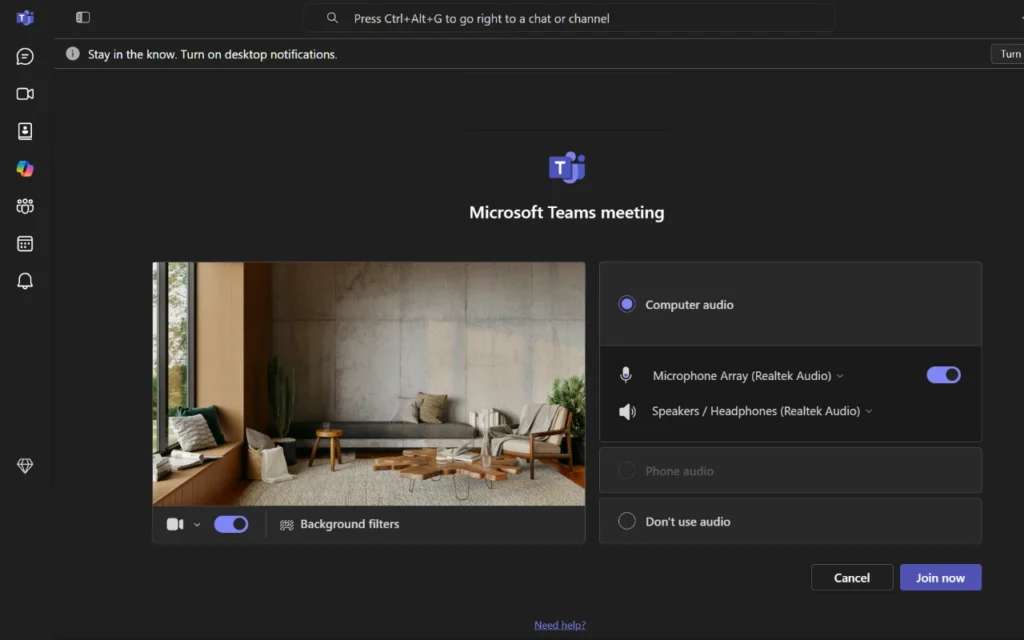
If your team lives in Outlook and Word, Teams is probably sitting in your toolbar. It does more than host video calls, it keeps chats, files, and meetings connected in one place, which starts to matter a lot once a project has more than a couple of moving parts. We tested it on July 9, 2026, running a live training session with 88 people on teams.live.com. The standout: live PowerPoint updates. Edit your slides mid-meeting, and the changes show up on screen right away, no need to re-share anything.
Category | Details |
|---|---|
Best For | Businesses using Microsoft 365 |
Free Plan | 100 participants, 60-minute limit |
Starting Price | $4/user/month (Teams Essentials) |
Participant Limit | 100–300, depending on plan |
Meeting Time Limit | 60 min (free), 30 hours (paid) |
Mobile Apps | iOS and Android |
Browser Support | Web version available; full features work best on desktop app |
Best For
Teams makes the most sense for businesses paying for Microsoft 365. Write proposals in Word, track projects in SharePoint? Teams ties all of that together with meetings and chat in one place.
Why It Made Our List
Teams solves a different problem than Zoom or Google Meet. It's not just about the call itself, it's what happens before and after. Files stay attached to the meeting, chat threads stick around so nobody has to ask “wait, what did we decide?” a week later, and nothing gets lost once the call ends.
Standout Features
Teams' webinar registration tools come in handy if you ever run client workshops or training sessions, sign-up forms and attendance reports are built right in, unlike Zoom, where webinars are a separate paid add-on. The shared workspace matters more than it sounds, too. A small agency juggling several client projects benefits from keeping meeting notes and files in the same channel instead of scattered across email threads.
Pricing Overview
The free plan covers 100 participants and 60-minute meetings, fine for basic use. Teams Essentials starts at $4 per user per month and removes the time limit, though it skips business email and the full Office apps. For that, you'll need a Microsoft 365 Business plan, which bundles Teams with Outlook, Word, and Excel starting around $6–7 per user per month. Full details are on Microsoft's Teams pricing comparison page.
- Deep integration with Microsoft 365 tools
- Strong for ongoing team collaboration, not just calls
- Webinar registration and reporting included on some plans
- Scales well for growing teams with multiple projects
- Can feel heavier and slower than Zoom or Google Meet
- Steeper learning curve for non-technical users
- Full value depends on using Microsoft 365
Hidden Limitations
Teams Essentials gets mistaken for a complete small-business package a lot, but it doesn't include business email or desktop Office apps, those need a separate Microsoft 365 plan. In our own testing, the virtual background wasn't perfect either, it occasionally cut into a hand or shoulder, and the lighting came through brighter than expected. Worth testing your own setup before a client call. Teams also felt heavier than Zoom or Google Meet, something you're likely to notice on an older laptop.
On Microsoft 365? Teams is the smart, cost-effective pick, since it plugs straight into a workflow you’re using. Outside that ecosystem, or if your team just wants something lighter for video calls, you'll probably get along better with another platform on this list.
4. Cisco Webex — Best for Security and Professional Business Meetings
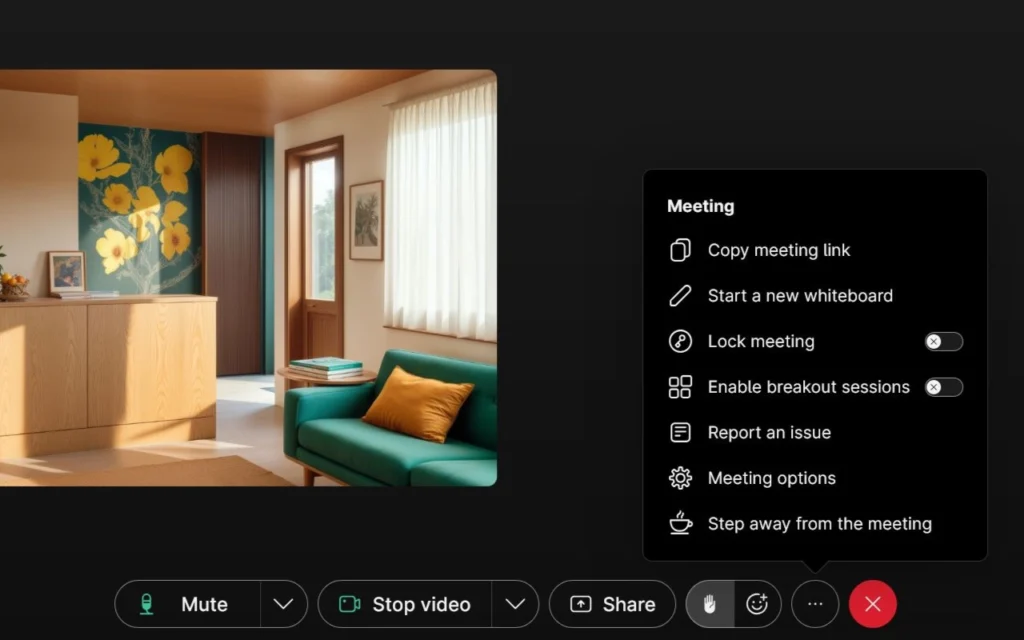
Cisco built its name on enterprise networking equipment, and that background shows in Webex. We tested it on July 26, 2026, and hit one real snag: Webex blocked us from joining a meeting once, flagging a network issue and suggesting we switch networks, drop any VPN, or try another browser. Our video preview also came through dark, worth knowing before you rely on it for a first impression with a client. Even with that hiccup, it's not the flashiest platform here, but it earns its spot because businesses handling sensitive client information, healthcare, legal, finance, tend to trust it more than the average video app. That trust is earned, not marketed.
Category | Details |
|---|---|
Best For | Compliance-sensitive businesses and professional meetings |
Free Plan | 100 participants, 40-minute limit |
Starting Price | $12/user/month (Webex Meet) |
Participant Limit | 100–1,000, depending on plan |
Meeting Time Limit | 40 min (free), 24 hours (paid) |
Mobile Apps | iOS and Android |
Browser Support | Browser-based join available; full app for hosts |
Best For
Webex fits businesses where getting security wrong isn't just inconvenient, it's a real liability. A consultant handling client financial records, or a small healthcare practice booking virtual appointments, gets more to stand on here than with most competitors.
Why It Made Our List
Consistency, not popularity, is what earns Webex its spot. Even users who grumble about the interface tend to agree the audio holds up when the connection doesn't. That's an odd thing to praise a video app for, but for a business owner mid-pitch on spotty hotel wifi, it matters more than a prettier menu.
Standout Features
The AI Assistant comes bundled into paid plans instead of tacked on as a separate charge, unlike some competitors. It transcribes calls and pulls out action items automatically, useful if you're the type who forgets to write things down mid-conversation. Real-time translation is worth a mention too, if you work with international clients, it's not something you'll find on every platform in this guide.
Pricing Overview
The free plan gives you 40 minutes and 100 attendees, tighter than some competitors but still workable for short calls. Webex Meet, at $12 per user per month, unlocks 24-hour meetings and AI features at no extra fee. Check Webex's pricing page directly, since Cisco's tiers and naming shift more often than most.
- Strong reputation for security and reliability
- AI Assistant included, not a paid add-on
- Real-time translation for international calls
- Holds up well on inconsistent internet connections
- Interface feels dated next to Zoom or Google Meet
- Smaller teams may never use half the features
- Costs more than Zoom or Zoho Meeting for comparable plans
Hidden Limitations
Some features, including certain compliance tools, only show up on Enterprise plans, worth checking directly if HIPAA compliance is a hard requirement, since the exact tier gating isn't always clear from the pricing page alone. Webex's menus also take some getting used to; a few long-time users still say simple settings changes take more clicks than they should.
If your business handles sensitive data, the higher price buys real peace of mind. If you're a freelancer or small team without regulatory concerns, you're better served by something simpler and cheaper. For a deeper look at security-focused options specifically, see our best video conferencing software for security and privacy guide.
5. Whereby — Best for Freelancers and Simple Client Meetings
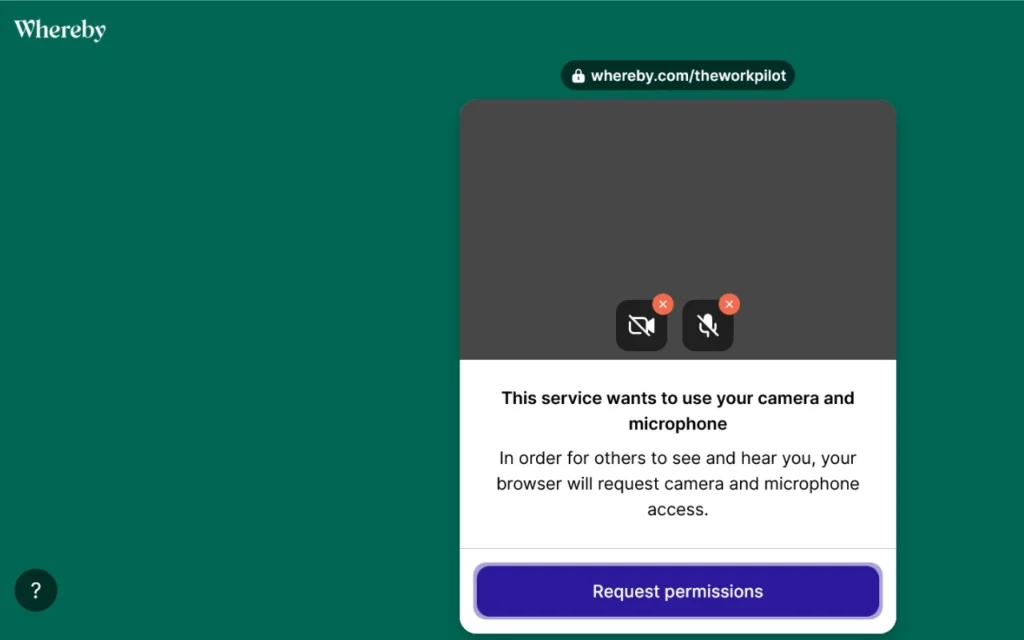
Whereby doesn't try to out-feature Zoom or Teams, and that's the whole point. We tested it on July 18, 2026: setting up a room took seconds, and a “let's test the call” step even gave us a QR code to join from a phone. It solves one problem really well, getting a client into a call with zero friction. No download, no account, no “which app do I need again?”, just a link.
Category | Details |
|---|---|
Best For | Freelancers, consultants, and client-facing solo businesses |
Free Plan | 4 participants, 30-minute limit |
Starting Price | $10.99/month (Pro) |
Participant Limit | 4–200, depending on plan |
Meeting Time Limit | 30 min (free), unlimited (paid) |
Mobile Apps | Works through mobile browser |
Browser Support | Fully browser-based, no download required |
Best For
Whereby suits small business owners who spend more time on client calls than internal meetings, freelancers, consultants, coaches especially. A solo consultant who wants one permanent link for their email signature or booking page will find this hard to beat.
Why It Made Our List
The best part isn't a feature, it's what's missing. Your client clicks a link and they're in the call within seconds, no app store detour required. For a business owner meeting new clients regularly, that first impression matters. A smooth call doesn't stand out, but a client stuck trying to download something for five minutes definitely does.
Standout Features
The permanent room link is the real draw here. Instead of sending a new link every time, you reuse the same one for every client call, on your website, in your email signature, on your booking page. Custom branding on the Pro plan is a nice touch too, since it makes a solo freelancer's meeting room feel like part of a real business rather than a random video app.
Pricing Overview
The free plan is limited, 4 people and 30 minutes, fine for a quick intro call and not much else. The Pro plan, at $10.99 a month, removes the time limit and allows up to 100 attendees, though only 12 can appear on video at once. See Whereby's pricing page for the full breakdown.
- No download needed for clients or guests
- Same permanent link for every meeting
- Custom branding available on paid plans
- Simple, even for non-tech-savvy clients
- Free plan caps out at 4 people and 30 minutes
- Recording is a separate add-on, not included
- Not built for larger team meetings
Hidden Limitations
The Pro plan's “100 participants” figure is a little misleading, only 12 people can appear on video at once, even though more can technically join. Worth knowing before you plan a bigger group call around it.
If client calls are the backbone of your business, Whereby removes real friction other platforms don't touch. Once you need bigger team meetings or built-in recording, though, it's time to look elsewhere on this list.
6. Zoho Meeting — Best Value for Budget-Conscious Small Businesses
Zoho Meeting doesn't try to be flashy, and it doesn't need to be. We tested it on July 20, 2026, signing in with Google in a couple of clicks. The in-call toolbar, camera, mic, screen share, chat, reactions, and a dedicated Raise Hand button, stayed clean and easy to navigate the whole time. It delivers what a small business needs, screen sharing, recording, reliable calls, at a price that's hard to beat anywhere else in this guide.
Category | Details |
|---|---|
Best For | Budget-conscious small businesses and Zoho users |
Free Plan | Yes, 100 participants, 60-minute meetings, no credit card required |
Starting Price | $1/host/month (Standard) |
Participant Limit | Up to 100 (Standard), up to 250 (Professional) |
Meeting Time Limit | 24-hour meetings on paid plans |
Mobile Apps | iOS and Android |
Browser Support | Fully browser-based, no download required |
Best For
Zoho Meeting fits small businesses and startups watching every dollar, especially if you're using other Zoho products like Zoho CRM or Zoho Projects. The integration between them is seamless, so you're not adding a whole new vendor relationship to manage.
Why It Made This Guide
This one proves you don't need to overpay for solid meeting software. At $1 per host per month, it's priced almost like an afterthought next to the competition, but it still covers recording, screen sharing, and breakout rooms on the Professional plan.
Standout Features
Breakout rooms on the Professional tier are a genuine surprise at this price, useful if you ever run small-group client workshops. The browser-based setup also means clients never have to download anything, which removes a common point of friction on first-time calls.
Pricing Overview
The Standard plan runs $1 per host per month and includes 5GB of cloud recording. Professional, at $3 per host per month, adds breakout rooms and API access. Most small businesses find Standard covers them until they start running client workshops or need deeper reporting. See Zoho Meeting's pricing page for the current numbers.
- Extremely low cost per host
- Clean, browser-based experience
- Strong integration with other Zoho apps
- Recording included even on the cheapest paid plan
- Smaller name recognition than Zoom or Teams
- Fewer third-party integrations outside Zoho
- Free plan details aren't always clearly listed
Hidden Limitations
The collaboration tools are lighter than Zoom's, there's no built-in whiteboard here, and the app ecosystem around Zoho Meeting is smaller than the bigger platforms. Worth testing with a real client call before committing your business to it.
If budget is the deciding factor and you're in the Zoho ecosystem, this is one of the smartest value picks in the guide. What you're trading away is the brand recognition that comes with a more established platform.
7. Jitsi Meet — Best Free Open-Source Video Conferencing Software
Jitsi Meet is the odd one out here, completely free, with no hidden upgrade path waiting down the road. We tested it on July 24, 2026, and getting into a room was fast: type a name, click Join Meeting, and you're in. One thing worth flagging, our video came through dark and grainy even under normal lighting. It's a solid option for businesses that don't need a full commercial platform, just a reliable way to get on a call.
Category | Details |
|---|---|
Best For | Freelancers, nonprofits, and privacy-focused businesses |
Free Plan | Free with no official participant or time limits |
Starting Price | Free (paid self-hosting/API options available) |
Participant Limit | No official cap on the free public version |
Meeting Time Limit | No official limit |
Mobile Apps | iOS and Android |
Browser Support | Fully browser-based, no download required |
Best For
Jitsi Meet works well for freelancers and nonprofits keeping costs at zero without cutting corners on privacy. If your business values open-source software or wants full control over where meeting data lives, this is one of the few platforms built around that.
Why It Made This Guide
As open-source software, Jitsi gives you something paid platforms don't: no company deciding what you can and can't see about how your calls get handled. That's a real advantage for privacy-conscious businesses, though it also means you're mostly on your own if something breaks.
Standout Features
No account is required to join, which keeps client calls simple. Businesses with technical staff can also self-host it for full control over their own data.
Pricing Overview
Jitsi Meet is free with no official participant or time limit on the public version, and there's no paid tier for the core product. If you want more control, self-hosting or the Jitsi as a Service (JaaS) developer option are the only paid paths, and both need technical setup rather than a simple subscription. See Jitsi's official site for details.
Hidden Limitations
There's no formal customer support line if something goes wrong, you're relying on community forums instead of a help desk. Recording isn't a simple one-click feature either; it needs a separate technical component, so it's not as beginner-friendly as the recording button on paid platforms.
- Completely free, no upgrade pressure
- No account required to join
- Strong privacy and open-source transparency
- No official customer support
- Fewer built-in business features than paid platforms
Jitsi Meet is a smart pick for budget-conscious freelancers and privacy-focused teams. If you need dedicated support, though, look elsewhere on this list. For more no-cost options, check out our best free video conferencing software guide.
8. Slack Huddles — Best for Teams That Use Slack
Slack Huddles isn't trying to be a full video conferencing platform, and it shouldn't be judged like one. We tested it on August 1, 2026, inside a Slack workspace. Slackbot greets you by name the moment you land (“Welcome, Jude! I'm Slackbot.”) and offers a few guided next steps: connect your other tools, invite your team, or get a quick walkthrough of Slack's basics. For teams that live inside Slack all day, Huddles skips a step most people don't even think about, opening a separate app just to talk.
Category | Details |
|---|---|
Best For | Teams using Slack daily |
Free Plan | 2 people, 30-minute limit |
Starting Price | $8.75/user/month (billed monthly, with a paid Slack plan) |
Video Support | Up to 50 people, 25 with video at once |
Mobile Apps | iOS and Android |
Browser/Desktop Support | Desktop app, Chrome, and Firefox |
Best For
Slack Huddles works best for internal teams who need to hop on a quick call without scheduling anything. chatting in Slack channels all day? Jumping into a Huddle takes one click. It isn't built for client meetings or anything formal, for that, you'll want a dedicated platform.
Why It Made This Guide
Speed is the real value here. No meeting link to send, no calendar invite to create, you just click and talk. For a quick internal question that would otherwise turn into a long back-and-forth of typed messages, that's a genuine time-saver.
Standout Features
AI-generated huddle notes are handy, capturing what was discussed without anyone needing to type it up afterward. Screen sharing works well too, useful for quick “can you look at this” moments between coworkers. The huddle preferences went further than we expected: auto-mute your mic on join, turn on captions automatically, blur your background, or set music to play if you're sitting alone waiting for someone to join. There's even a built-in warning if you start a huddle in a channel with more than 150 members, a nice guardrail against accidentally pinging a huge group.
Pricing Overview
The free plan only allows 2 people for 30 minutes, which makes it impractical for team calls. Paid Slack plans unlock up to 50 people, though only 25 can use video at once, and Huddles come bundled in rather than priced separately. Check Slack's pricing page for the latest plan breakdown.
- Instant, one-click calls with no scheduling
- Built-in AI notes
- Great for quick internal check-ins
- Free plan is essentially unusable for teams
- No formal meeting features for clients
- Video capped at 25 people even on paid plans
Hidden Limitations
There's no recording feature at all, and Huddles are really only worth it if your team is committed to Slack as its main communication tool. One thing worth checking before you rely on it: in our test, the Audio & Video preferences showed camera, microphone, and speaker all listed as “Unknown Device” until we manually selected the right hardware, easy to miss if you're rushing into a call. Slack does include a built-in connectivity test for audio, video, screen sharing, and network, though in our session the results sat on “Pending” instead of resolving, worth running that check well ahead of a call that matters.
Running on Slack? Huddles is a nice bonus for quick internal chats. For client meetings or anything more formal, you'll still want a dedicated platform from the list above.
Best Video Conferencing Software by Business Type
Still not sure which platform fits your business? Here's the short version, sorted by situation instead of by software name.
Best for Freelancers
Whereby is the clear pick here. When your business is mostly client calls, the last thing you want is someone fumbling with a download link before you've even said hello. Whereby permanent room link is handles that, same link every time, no app required.
If your clients expect something more recognizable, Zoom makes a solid backup. It's the name most people trust.
Best for Small Businesses
Zoom takes this one for general small business use. It handles client calls and internal meetings equally well, and the AI meeting notes on paid plans save time.
Paying for Google Workspace, though? Check Google Meet first, you might have what you need without adding another bill.
Best for Remote Teams
Microsoft Teams stands out here mainly because remote teams need more than just video, they need a shared place for files, chat, and meeting notes to live. That matters a lot more once your team isn't sitting in the same room.
If your team is smaller and doesn't need that much structure, Zoom is a lighter, easier alternative.
Best for Client Meetings
Whereby wins again, for the same reason it topped the freelancer category, clients join instantly, with nothing to install. That first impression counts.
Where security and compliance matter more than convenience, Cisco Webex is the stronger call, especially in healthcare, legal, or financial work.
Best for Google Workspace Users
Simple: Google Meet. If you’re paying for Gmail, Docs, and Calendar, Meet is likely bundled in. Adding a separate video tool on top often means paying twice for the same job.
Zoom remains a solid alternative if you want more advanced meeting features than Meet currently offers.
Best for Microsoft 365 Users
Microsoft Teams is the natural fit if your business runs on Outlook, Word, and Excel. Meetings connect directly to your existing files and chats, so nothing gets lost between tools.
If Teams feels heavier than you need, Zoom is a simpler, faster alternative that still plays nicely alongside Microsoft 365.
Best Value for Money
Zoho Meeting takes this one without much competition. At roughly $1 to $3 per host per month, it covers the essentials, recording, screen sharing, breakout rooms on the higher tier, for a fraction of what other platforms charge.
Want more brand recognition at a still-reasonable price? Zoom's free plan or entry-level Pro plan is a fair middle ground.
Best Free Option
Jitsi Meet is the only platform here with no real strings attached, no time limit, no participant cap, no upgrade nudges waiting for you. The trade-off is you're on your own if something breaks, since there's no dedicated customer support.
If you'd rather have a free plan with support behind it, Google Meet's free tier is a dependable runner-up, even with its shorter meeting limits.

How to Choose the Right Video Conferencing Software for Your Business
By now you've seen the individual reviews. Picking the best video conferencing software for your small business comes down to matching a tool to how you work, not chasing the longest feature list. Here's how to think it through.
Start with How Your Business Uses Meetings
Before you compare a single price tag, ask yourself what your meetings look like. A freelancer hopping on client calls all week needs something different than a small team running daily internal check-ins. Sales calls have different demands than training sessions. Even the number of meetings you host in a week changes the answer.
Write down your typical week. How many meetings are client-facing? How many are internal? Quick 15-minute check-ins, or longer sessions that run past 40 minutes? That one exercise rules out half the options on this list before you even glance at pricing.
Choose Software That Fits Your Existing Workflow
Nine times out of ten, the best fit is whatever connects to what you're paying for. On Google Workspace, adding Zoom on top of Google Meet means paying for two things that do the same job. Same story with Microsoft 365 and Teams.
And it's not just email and calendars. Think about your CRM, your scheduling tool, how your team talks to each other. A platform that connects smoothly with what you use saves you more time than one with a longer feature list and zero integration.
Think Beyond Today's Team Size
It's tempting to pick the cheapest plan that covers your team right now. But if you're planning to grow, it's worth thinking one step ahead. Adding a few more clients or team members shouldn't mean switching your entire meeting software six months from now.
You don't need to overpay for room to grow. Just make sure the platform you pick has a reasonable next step, a paid tier that covers what you'll likely need without a painful jump in price or a total re-learn of the interface.
Don't Pay for Features You'll Never Use
This is where a lot of small businesses waste money. AI meeting summaries sound great, but if you rarely take notes on calls anyway, you're paying for something you'll never touch. Webinar tools, enterprise admin controls, huge meeting capacities, same story: useful for some businesses, dead weight for others.
Before you upgrade to a pricier plan, ask what you're paying extra for. If the honest answer is a feature list you can't picture yourself using, stay on the cheaper tier.
Always Test the Free Plan First
Every platform in this guide has some version of a free plan, and it's worth using before you commit to anything paid. A free plan won't show you everything, but it'll show you the basics that matter most: does the video look clear, does the audio cut out, and is it easy for someone else to join without help?
Test it on your real internet connection, not your fastest wifi. Try it on your phone, not just your laptop. If it holds up during the free trial, it'll likely hold up once you're paying for it too.
Questions to Ask Before Choosing a Video Conferencing Platform
- How many people usually join your meetings?
- Do clients need to join without downloading anything?
- Do you pay for Google Workspace or Microsoft 365?
- Will your team grow in the next year?
- Do you need meeting recordings regularly?
- Is your budget monthly, or can you commit to annual billing?
- Do you host webinars or training sessions?
- Does your business handle sensitive client data?
- How important is brand recognition to your clients?
- Will you need customer support if something breaks?
Once you've worked through these, you'll likely know which platform fits best. But picking the right software is only half the job. Even a great platform can fall flat if it's set up the wrong way, which is exactly what trips up a lot of small businesses next.
Common Mistakes to Avoid When Choosing Video Conferencing Software
Even with all the right information, it's easy to make a decision you'll regret three months later. Here are the mistakes we see most often.
Choosing Software Based Only on Price
Going straight for the cheapest option feels like the smart move, but it can backfire fast. Pick a platform on cost alone, and if it can't handle a 45-minute client call without cutting off, you'll end up paying for an upgrade anyway, plus the awkward moment of a meeting ending mid-sentence.
The flip side costs just as much. Plenty of businesses pay for a premium plan loaded with features they'll never touch, just because it felt like the “safe” choice. The goal isn't the cheapest or the most expensive option. It's the one that fits what you need.
Rolling It Out Without Telling Anyone
Picking the right platform doesn't help much if your team or your clients don't know it changed. A new meeting link sent without warning gets missed, ends up in spam, or gets ignored because it looks unfamiliar.
Give your team a heads-up before the switch, and send returning clients a short note explaining what's changing and why. A five-minute email saves you a week of “wait, where the new link is?” messages.
Paying for Enterprise Features Too Early
Large meeting capacities, advanced admin controls, webinar tools, AI features, they all look impressive on a pricing page. But most freelancers and small teams don't need any of it yet.
These features earn their keep once you have a growing team, regular training sessions, or real regulatory requirements. Until then, they're just extra cost sitting on your invoice. Plan for growth if you want, but there's no reason to pay enterprise prices for a team of three.
Forgetting About Your Clients
It's easy to choose software based on what's easiest for your own team and forget your clients' experience matters just as much. If a client has to download an app, create an account, or fight with browser compatibility just to join a call, that friction becomes their first impression, not your service or your product.
Check how the platform behaves on mobile, since plenty of clients will join from their phone without warning. A smooth, simple join process says more about your business than you'd expect.
Never Revisiting the Plan Later
Most businesses pick a plan once and never look at it again, even as their needs change. A freelancer who started solo might be running client workshops a year later without realizing their plan doesn't include breakout rooms. A team that's grown might still be paying for a tier meant for three people, not ten.
Set a reminder to check your plan every six months or so. It takes a few minutes, and it either confirms you're still on the right tier or catches a mismatch before it turns into a bigger problem.
One Last Check Before You Buy
You’ve worked through the bigger questions above. Before you pay for anything, run through these three:
- Have you tested the free plan on a real call, not just alone? A quiet solo test won't show you how it handles an actual client or teammate joining.
- Are you paying for features you'll use this year, not just ones that sound good on the pricing page?
- If your team grows, does the next pricing tier still make sense, or will you be re-shopping in six months?
Even after avoiding these mistakes, most business owners still have specific questions before they're ready to commit, things like exact pricing, free plan limits, and how secure a platform really is.
Frequently Asked Questions
1. What is the best video conferencing software for a small business?
For most small businesses, Zoom is the best overall choice. It's reliable, easy for clients to join, and its paid plans include AI meeting notes at no extra charge. That said, the right answer depends on your situation, Google Meet or Microsoft Teams might make more sense if you’re paying for Google Workspace or Microsoft 365.
2. Is Zoom still the best option for small businesses?
For most general use, yes, mainly because so many people recognize it. If most of your calls are internal and short, though, Google Meet's longer free time limit or Slack Huddles (if your team’s on Slack) might fit better day to day.
3. Is Google Meet better than Zoom?
Depends what you’re paying for. On Google Workspace, Meet is often the smarter pick since it's likely bundled into your existing subscription. Off Google Workspace, Zoom generally offers more features and a slight edge in call reliability.
4. Which video conferencing software has the best free plan?4. Which video conferencing software has the best free plan?
Jitsi Meet, by far, no official time limit or participant cap. The trade-off is no customer support if something breaks. Among the mainstream platforms, Google Meet's free plan allows longer meetings (60 minutes) than Zoom's (40 minutes), though it skips recording.
5. What is the easiest video conferencing software for clients?
Whereby. Clients click a single link and join instantly, no download, no account, no waiting. That matters more than people expect, since a client who struggles to join isn't thinking about your business, they're thinking about the tech problem in front of them.
6. Is Microsoft Teams too complicated for a small business?
It can feel that way at first, especially if your team isn’t on Microsoft 365. Teams has more going on than a simple video app, since it also handles chat, file sharing, and project collaboration. On Microsoft 365, though, that extra structure becomes an advantage instead of a hurdle.
7. Which video conferencing platform is the most secure?
Cisco Webex has the strongest security reputation among the platforms in this guide, which is why it's a common choice for healthcare, legal, and financial businesses. Zoom also offers solid encryption and compliance options on its paid plans. Keep in mind HIPAA compliance isn't automatic on any platform, it requires a signed agreement with the provider plus the right account setup, so confirm the details directly with whichever provider you pick.
8. Can I run a business using only a free video conferencing platform?
It's possible, though it depends on your call volume. Jitsi Meet's free plan has no real limits, so a budget-conscious freelancer could realistically run on it long-term. Zoom and Google Meet's free plans work fine for occasional short calls, but most growing businesses outgrow the time and participant limits fairly quickly.
9. What should I look for before paying for a video conferencing subscription?
Check what's included at each price point, recording, meeting length, and participant limits vary a lot between plans. Also test the free version on your real internet connection, not your fastest wifi, so you know call quality holds up before you commit to a paid plan.
10. Which platform works best with Google Workspace or Microsoft 365?
Google Meet is the natural fit for Google Workspace, since it’s included in most plans. Microsoft Teams plays the same role for Microsoft 365, connecting directly to Outlook, Word, and Excel. Either way, you're not paying twice for tools that do the job.
Final Verdict
There's no single “best video conferencing software for small business” that works for everyone reading this. The right pick depends on your team size, your budget, the tools you pay for, how your meetings run, and where your business is headed next year.
Our Top Recommendations
- Best Overall: Zoom, reliable, easy for clients, and includes AI meeting notes free on paid plans.
- Best for Google Workspace Users: Google Meet, likely bundled into what you're paying for.
- Best for Microsoft 365 Users: Microsoft Teams, connects meetings directly to your existing files and chats.
- Best for Freelancers: Whereby, clients join instantly with one link, no download required.
- Best Value: Zoho Meeting, real business features for around $1 to $3 per host, per month.
- Best Free Option: Jitsi Meet, no time limit, no participant cap, no strings attached.
Test Before You Commit: A One-Week Trial Plan
When in doubt, don't buy anything yet. Start with the free plan of your top pick and run real meetings on it for a week or two, actual client calls, not just a test with yourself. Pay attention to whether it saves you time or creates new friction. If it holds up under normal use, upgrading is an easy call. If it doesn't, you'll know before you've spent a dollar.
This approach beats guessing off a features list every time. You learn how a platform performs in your business, not just how it looks on a pricing page.
If none of the eight above feel like an obvious fit, start with Zoom's free plan and Google Meet's free plan side by side. Between the two, you'll quickly see whether your real bottleneck is call length, client friction, or missing integrations, and that answer points you straight to the right paid tier.
This guide is written for small businesses and freelancers broadly. If you're comparing tools for a remote team, our best video conferencing software for remote teams guide digs into that angle in more depth. And if you're still building out your toolkit, our guides on the best project management software.